Why I built a screenshot app for iPhone and Mac
By Roman Resenchuk,
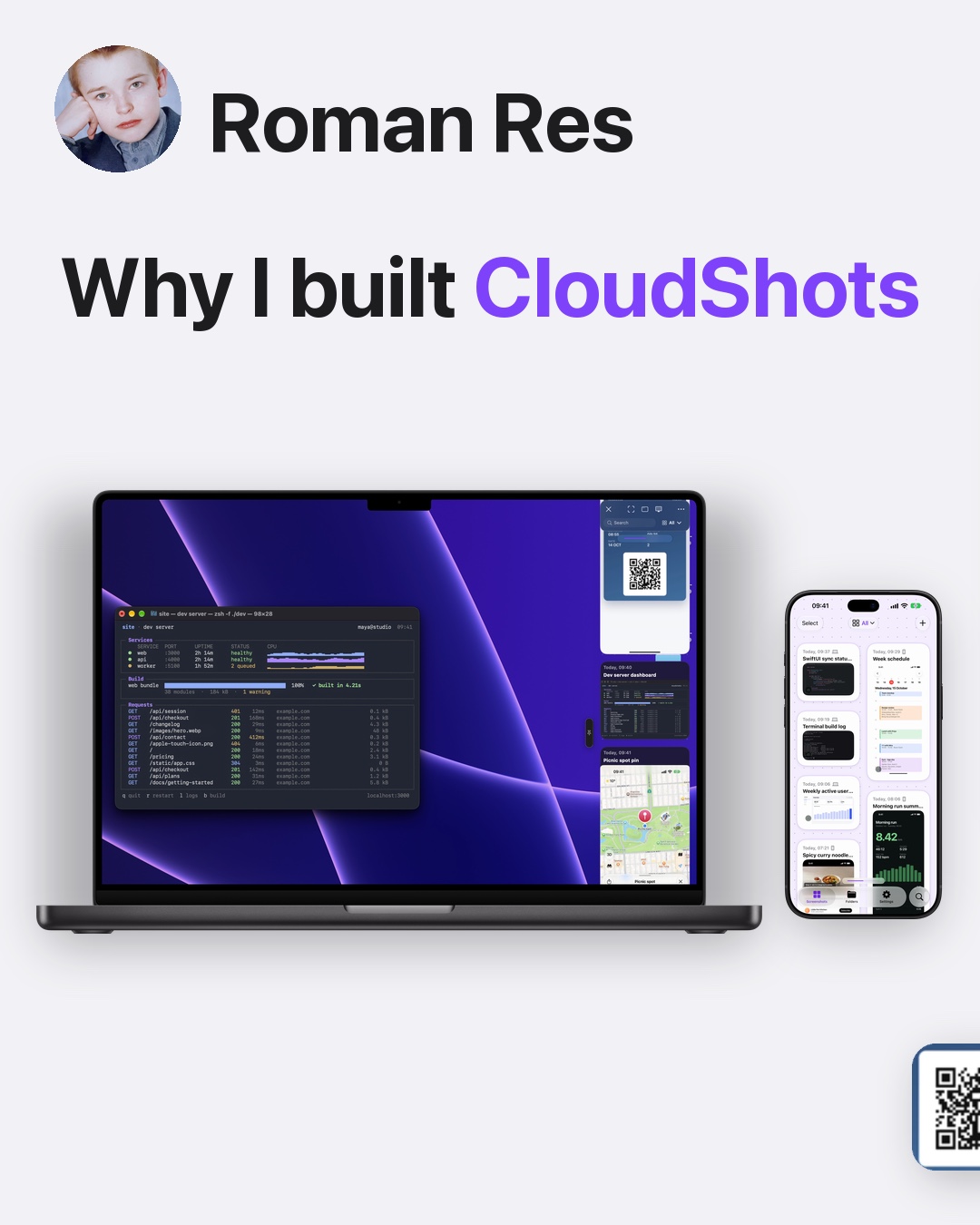
I built a screenshot app, CloudShots, because my screenshots were scattered across a Mac desktop and a camera roll. Now one library lives on Mac, iPhone and iPad, in your own private iCloud.
Why I built it
My name is Roman Res. I have been an iOS and macOS developer since 2011, and in my free time I built CloudShots as a pet project. I take screenshots all day: errors, designs, recipes, maps. They ended up in two places that never met, a Desktop buried in files named by date and a camera roll full of pictures I could not tell apart.
CloudShots is a screenshot app for iPhone, iPad and Mac. It keeps every screenshot in one library, names and searches them, and shows the same newest screenshot on each device.
What the slides show
- Me and the question: why I built it, with the Mac and the iPhone side by side.
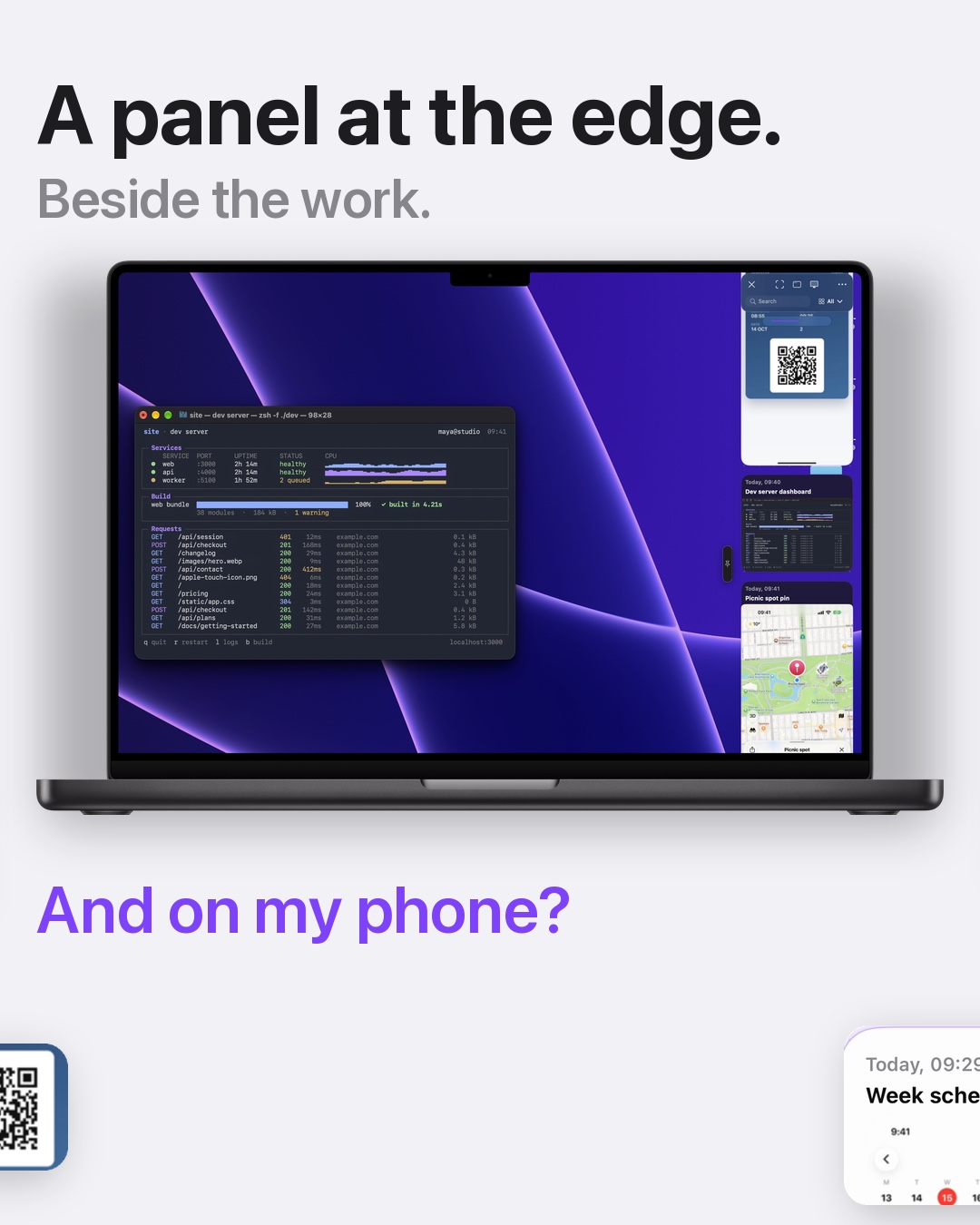
- The Mac. A panel at the edge of the screen, right beside my work, holds the library.
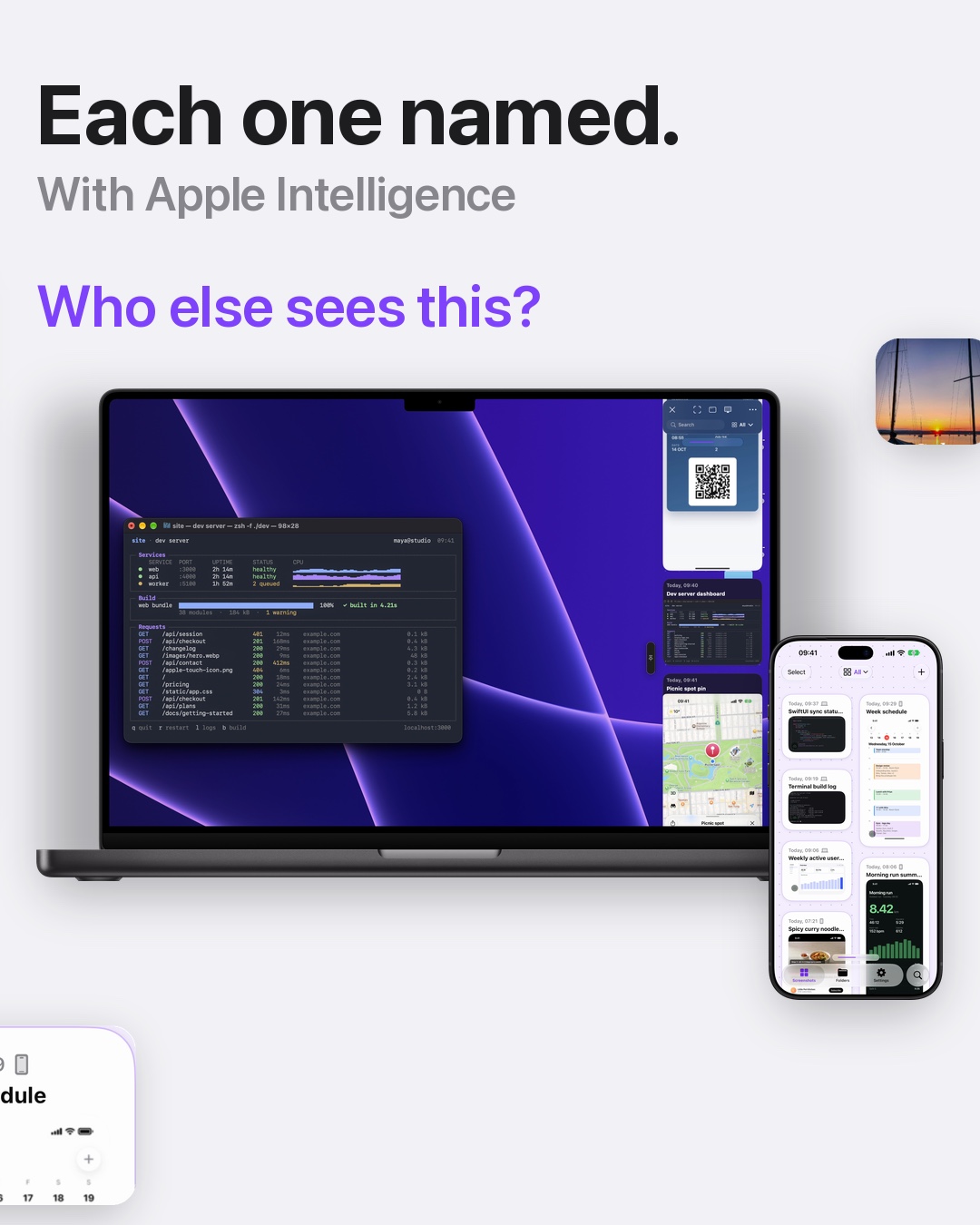
- The iPhone. Each screenshot gets a name, with Apple Intelligence.
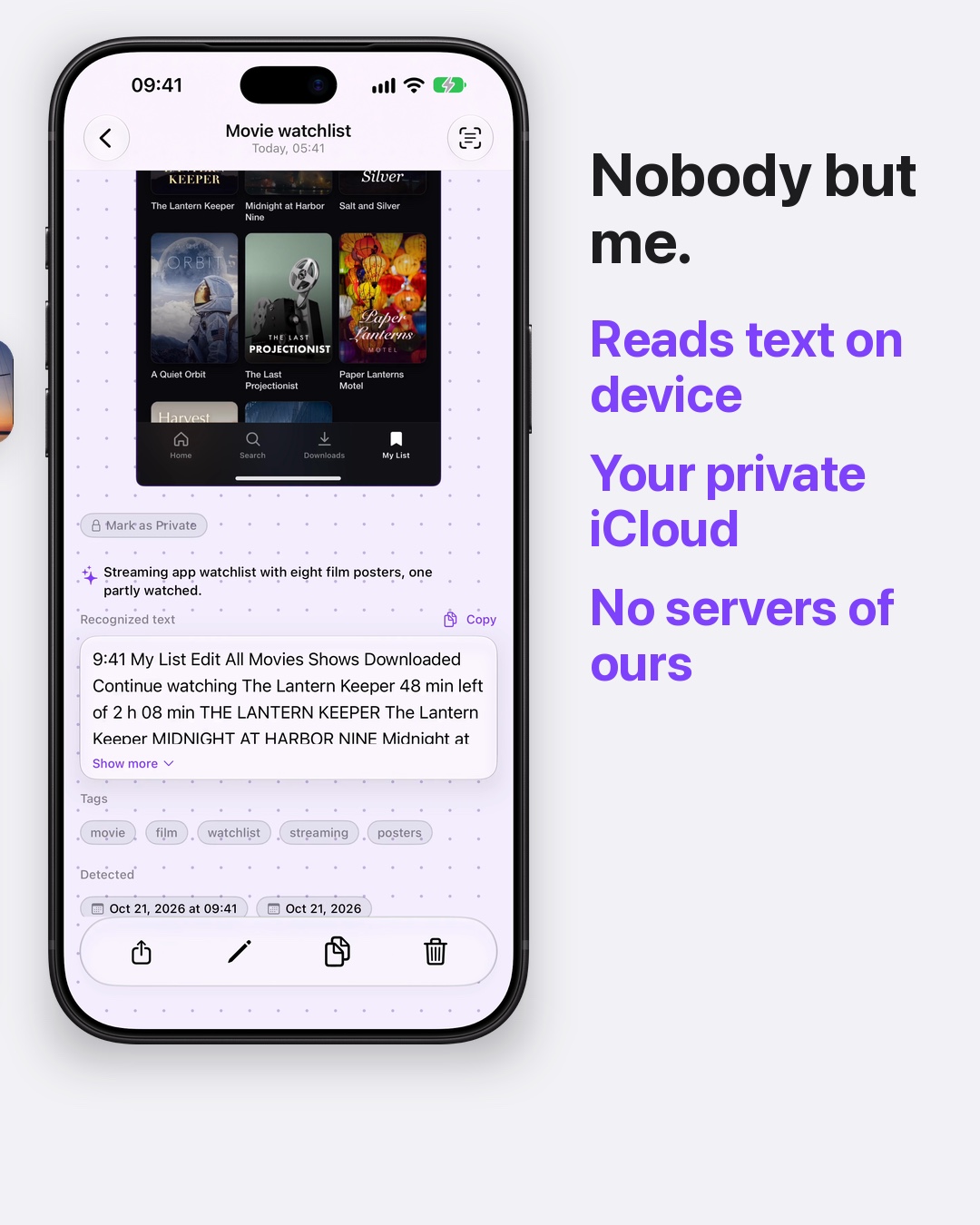
- Privacy. Text is read on the device, sync goes through your own private iCloud, and CloudShots has no servers of ours.
- Download on CloudShots.app.
The takes in the slides are staged, so I make no claim about speed.
Where it started
The idea came from small daily friction. I would screenshot an error on the iPhone, then open the Mac and search my Desktop for a picture I had just taken. Every device had its own pile, and none of the piles knew about the others. I wanted one library that follows me, stays private, and looks the same wherever I open it, so I built it for myself first and then kept going.
How to set up CloudShots on all your devices
- Install CloudShots on your iPhone and your Mac, and your iPad if you have one.
- Sign in to iCloud on each device with the same Apple account.
- Take a screenshot on any device.
- Open the CloudShots feed on another device and find it there.
- Open Settings on the Mac to choose how the panel behaves.
The sync screenshots between Mac and iPhone guide goes through each step, and the iCloud screenshot manager page explains how the library uses your iCloud.
How privacy works
Your screenshots sync through your own private iCloud. There are no CloudShots servers that hold them. Text recognition and smart names run on your device, and smart names need Apple Intelligence on supported devices. The privacy page lists what the app does and does not do, including what you can turn off.
What I use it for every day
On the Mac, the panel keeps the last screenshot one move away, so I drop it into a message without hunting on the Desktop. On the iPhone I search by a word from the picture. The find text in screenshots guide shows how that works. The pin a screenshot on screen page covers keeping one in view while I work.
Who it is for
CloudShots is for people who screenshot a lot and want the shots where they work. A developer sends a terminal screenshot to a colleague from the Mac panel. A traveller finds a map pin on the phone. Anyone with a Mac and an iPhone gets one place for all of it, instead of a Desktop and a camera roll that never meet.
What it is not
Smart features need supported devices. CloudShots is a small project, built by one developer, and I keep it simple on purpose.
FAQ
How do I use a screenshot app on iPhone, iPad and Mac together?
Install CloudShots on each device and sign in to the same iCloud account. Every screenshot appears in one library on all of them, newest first.
Does CloudShots store my screenshots on its servers?
No. Your library syncs through your own private iCloud, and CloudShots has no servers that hold your screenshots.
Who builds CloudShots?
I do. I am Roman Res, an iOS and macOS developer since 2011, and CloudShots is my free-time pet project.
Download on CloudShots.app.
More guides
- How to automatically sync screenshots between Mac, iPhone and iPadOne private screenshot history that syncs both ways through iCloud: Mac to iPhone and iPad, and back.
- How to find a screenshot by the text inside itSearch by the words you remember seeing, on any of your devices.
- How to free up the space your screenshots takeClear synced originals from Photos and your Mac without losing your history.
- CloudShots is an iCloud screenshot manager for Mac, iPhone and iPadWhat lives in your own iCloud, how the library limit works, and what stays private.
- One screenshot history for your Mac, iPhone and iPadOne searchable history of every screenshot from your Mac, iPhone and iPad, synced through your own iCloud. Find any shot and free up storage.
- How to pin a screenshot on screen on MacKeep a screenshot floating above your other windows on Mac with ⌘P. Pin up to 6, move and resize them, close with Esc.
- How to redact or blur text and faces in a screenshot on MacBlur, pixelate or cover text, faces and objects in a screenshot on Mac. Redaction in CloudShots is non-destructive: your original stays untouched.
- How to add a background, padding and shadow to a screenshot on MacExport a Mac screenshot with a background, padding, rounded corners and a shadow using Export with Frame in CloudShots. Copy, save or share the result.
- CloudShots compared with a premium all-in-one capture suiteHow CloudShots compares with a premium, paid all-in-one capture and annotation suite for Mac: history, text search, redaction and pricing.
- CloudShots compared with a floating screenshot toolHow CloudShots compares with a floating, pin-on-screen screenshot tool with a quick library: history, text search, redaction and pricing.
- CloudShots compared with a fast capture and text-recognition utilityHow CloudShots compares with a fast, lightweight capture utility with on-screen text recognition: history, text search, redaction and pricing.
- All guides


TestFlight includes Pro for beta testing. No purchase is required or charged.