One screenshot history for your Mac, iPhone and iPad
CloudShots keeps every screenshot you take on Mac, iPhone and iPad in one history that syncs automatically through your own iCloud. Search it by what is inside each screenshot, and, once everything is safely synced, clear the originals that crowd your iPhone storage and your Mac desktop.
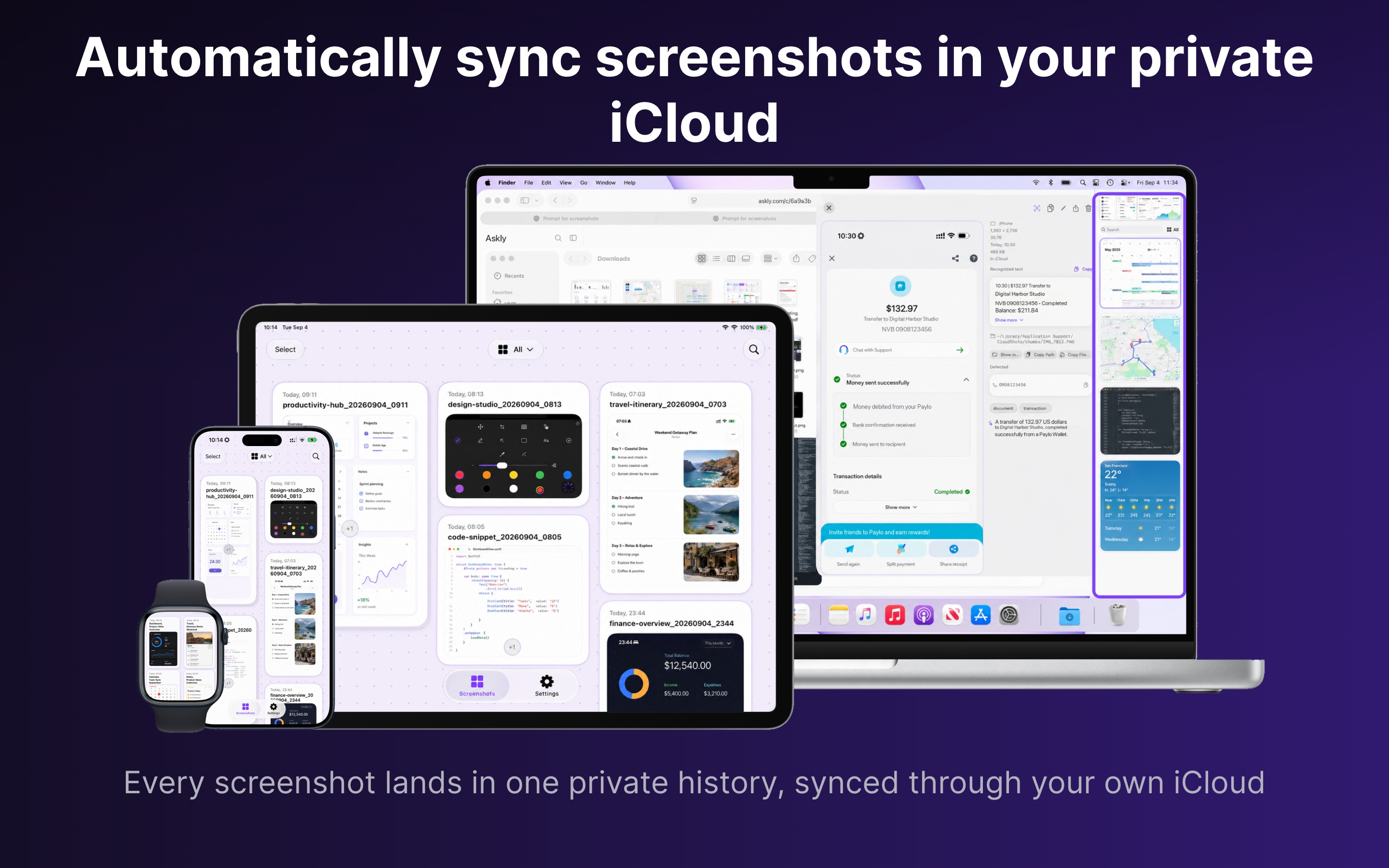
Set up your screenshot history
- Install CloudShots on your Mac and on your iPhone or iPad, and sign in to the same iCloud account on each. There is no CloudShots account to create.
- On iPhone or iPad, give Photos full access when onboarding asks, so CloudShots can import the Screenshots album in the background. On Mac, confirm the folder your screenshots already go to and grant access once.
- Open the history on your Mac from the menu-bar icon, or browse it on iPhone and iPad. Filter by where a screenshot came from, or search for the words you remember.
What one history holds
- Mac captures taken with CloudShots, plus screenshots from the folder you chose.
- The Screenshots album from your iPhone and iPad, imported automatically.
- Filters for the source: Mac, iPhone, iPad, Apple Watch or CarPlay.
- Search across the text recognized in each screenshot, its scene tags and its generated name, including date phrases such as "last week".
Free up iPhone storage and clear the Mac desktop
Once a screenshot is confirmed in iCloud, CloudShots can remove the original: Free Up Your Photos on iPhone and iPad, Free Up Your Mac on the folder you imported. Originals go to Recently Deleted or the Trash, so they stay recoverable, and the screenshot stays in your CloudShots history. Both cleanups are Pro features and run only after you confirm.
The limits
- Sync is free and identical on Free and Pro. Free opens the newest 30 screenshots; older ones keep syncing and stay locked, never deleted.
- The history lives in your own private iCloud. CloudShots has no server for your screenshots. iCloud storage is billed by Apple.
- Apple Watch shows recent screenshots read-only.
Questions
Install CloudShots on both devices and sign in to the same iCloud account. Mac captures and the iPhone Screenshots album then join one history that syncs automatically.
Yes. Sync is identical on Free and Pro. Free opens the newest 30 screenshots; older ones keep syncing and stay locked rather than deleted.
Yes. CloudShots searches the text recognized in each screenshot, its scene tags and its generated name, including date phrases. The indexes are built on your devices.
After your screenshots are confirmed in iCloud, Free Up Your Photos removes the originals from Photos into Recently Deleted. It is a Pro feature and asks you to confirm first.
No. It never deletes anything from your Photos library or your Mac screenshot folder by itself. Lowering the history size setting is the one destructive setting, and it asks you to confirm.
More guides
- How to automatically sync screenshots between Mac, iPhone and iPadOne private screenshot history that syncs both ways through iCloud: Mac to iPhone and iPad, and back.
- How to find a screenshot by the text inside itSearch by the words you remember seeing, on any of your devices.
- How to free up the space your screenshots takeClear synced originals from Photos and your Mac without losing your history.
- CloudShots is an iCloud screenshot manager for Mac, iPhone and iPadWhat lives in your own iCloud, how the library limit works, and what stays private.
- How to pin a screenshot on screen on MacKeep a screenshot floating above your other windows on Mac with ⌘P. Pin up to 6, move and resize them, close with Esc.
- How to redact or blur text and faces in a screenshot on MacBlur, pixelate or cover text, faces and objects in a screenshot on Mac. Redaction in CloudShots is non-destructive: your original stays untouched.
- How to add a background, padding and shadow to a screenshot on MacExport a Mac screenshot with a background, padding, rounded corners and a shadow using Export with Frame in CloudShots. Copy, save or share the result.
- All guides


TestFlight automatically unlocks Pro for beta testing. No purchase is required or charged.