Name screenshots automatically: a week of mine
By Roman Resenchuk,
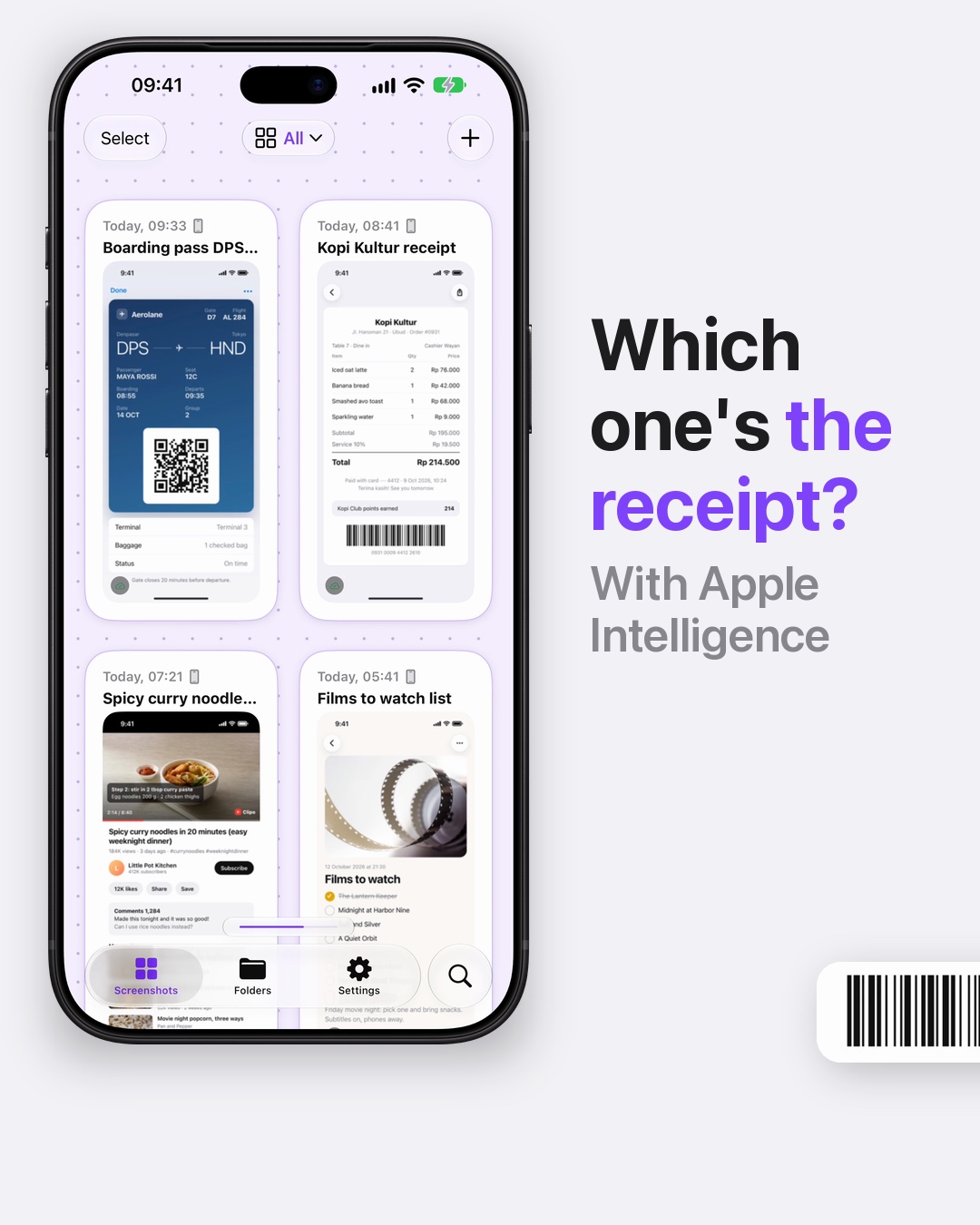
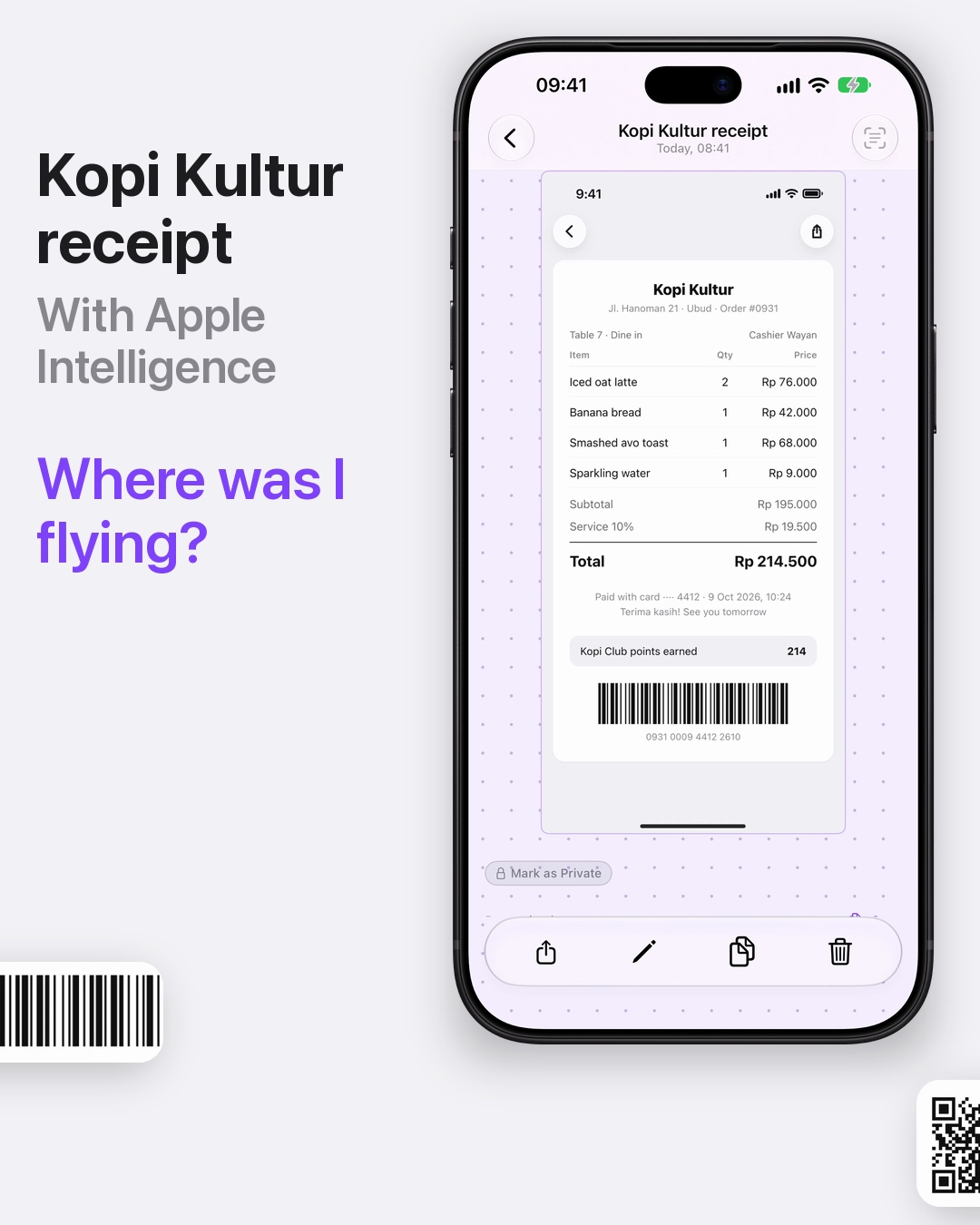
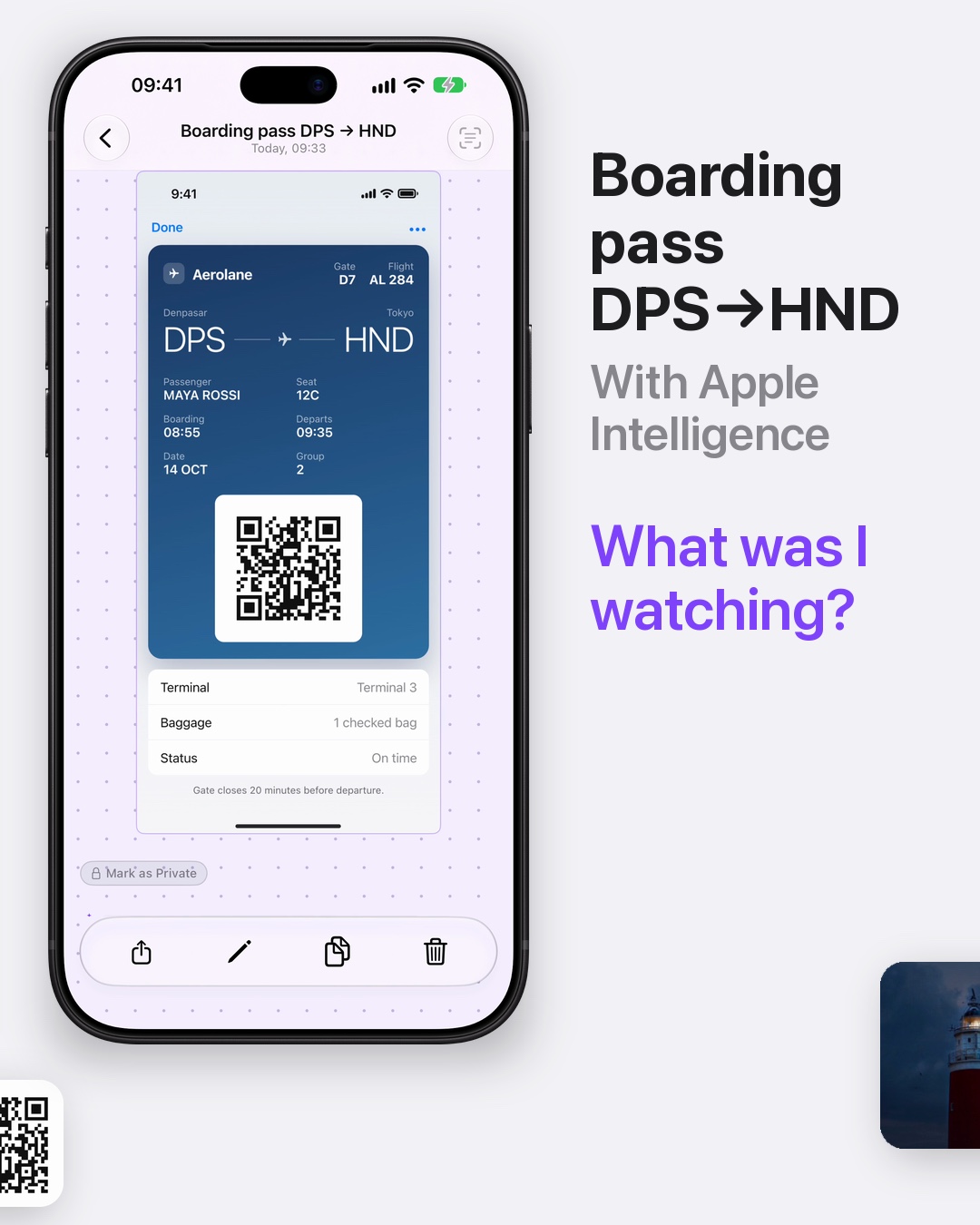
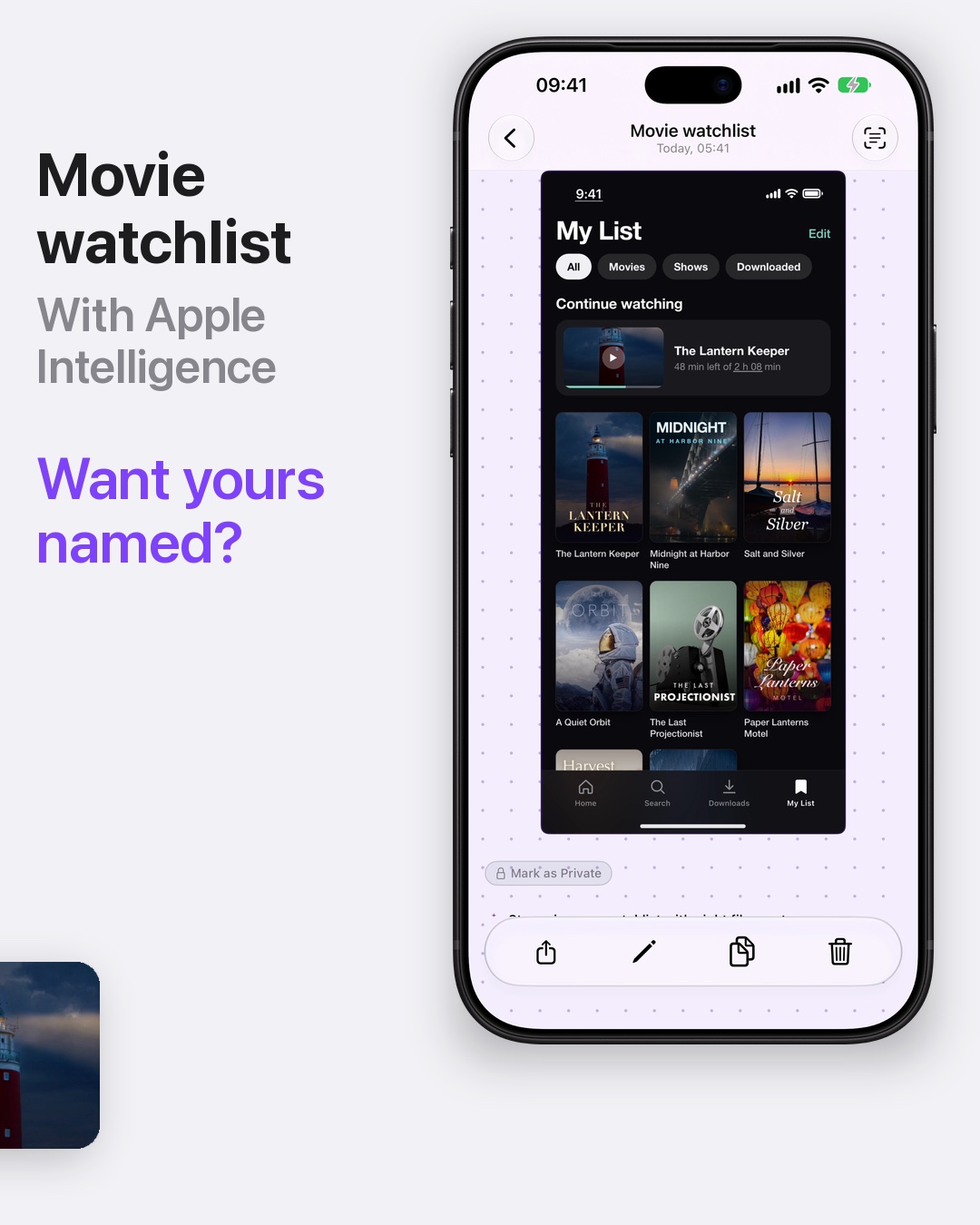
To name screenshots automatically, CloudShots reads what is in each picture and gives it a short name that says what it is, such as "Kopi Kultur receipt", on iPhone and Mac with Apple Intelligence.
A week of my screenshots
This week I screenshotted a receipt, a boarding pass and a film watchlist. In any other app they would all be called "Screenshot" with a date. In my feed they have names I can read at a glance.
CloudShots is a screenshot app for iPhone, iPad and Mac that I build in my free time. My name is Roman Res, I have been an iOS and macOS developer since 2011, and this pet project exists because I was tired of a camera roll full of identical file names.
What the slides show
- The receipt. A receipt comes into the feed as "Kopi Kultur receipt", not a timestamp.
- The boarding pass. A flight screenshot becomes "Boarding pass DPS → HND", and the text inside it is read too, so I can search for a word later.
- The watchlist. A grid of film posters becomes "Movie watchlist".
The takes are staged, so I make no claim about speed. The point is that every screenshot says what it is.
How to name screenshots automatically in CloudShots
- Use CloudShots on a device that supports Apple Intelligence.
- Take a screenshot as usual.
- Open the CloudShots feed. The new screenshot appears with a name that describes what is in it.
- Search for a word from the name, or from the text inside the picture, to find it later.
The find text in screenshots guide shows how search and names work together, and the screenshot history page explains how the library keeps everything in one place.
Where the naming happens
Smart names need Apple Intelligence on supported devices, and the naming runs on your device. Your library syncs through your own private iCloud, and there are no CloudShots servers that hold your screenshots. The privacy page has the full detail.
Why names matter
A screenshot you cannot recognise is a screenshot you scroll past. A name that says "Kopi Kultur receipt" tells you what you will see before you open it. It also makes the library easier to clean: when every item says what it is, deciding what to keep takes a glance. The free up screenshot space guide covers clearing what you no longer need.
Why a receipt and a boarding pass
Those two are the screenshots I open most often and recognise least. A receipt is a grid of small numbers, and a boarding pass is a QR code and two airport codes, so in a camera roll both look like every other rectangle. A name that says "Kopi Kultur receipt" or "Boarding pass DPS → HND" turns the library into a list I can read instead of a wall of thumbnails I have to open one by one.
What I look for in a name
A good name answers one question: what will I see if I open this? "Movie watchlist" tells me it is a list of films before I tap. "Kopi Kultur receipt" tells me whose receipt it is. I search these names the same way I search the text inside the pictures, so a week later I find the right screenshot by remembering a word, not a date.
What this does not do
Names are a short description of the picture, not a guarantee. A screenshot with little in it may get a simple name, and on a device without Apple Intelligence, smart names are not available. In that case your screenshots still sync and search the same way.
FAQ
How do I name screenshots automatically on iPhone?
Use CloudShots on an iPhone that supports Apple Intelligence. New screenshots then arrive in the feed with a name that describes what is in the picture.
Which devices can name screenshots automatically?
Smart names need Apple Intelligence on supported devices. CloudShots runs the naming on your device, so the screenshot stays in your own library.
What is a smart name in CloudShots?
A smart name is a short description of what is in the screenshot, such as "Kopi Kultur receipt" or "Movie watchlist". It replaces a timestamp that tells you nothing.
Does CloudShots upload my screenshots to name them?
No. The naming runs on your device, sync uses your own private iCloud, and CloudShots has no servers that store your screenshots.
Download on CloudShots.app.
More guides
- How to automatically sync screenshots between Mac, iPhone and iPadOne private screenshot history that syncs both ways through iCloud: Mac to iPhone and iPad, and back.
- How to find a screenshot by the text inside itSearch by the words you remember seeing, on any of your devices.
- How to free up the space your screenshots takeClear synced originals from Photos and your Mac without losing your history.
- CloudShots is an iCloud screenshot manager for Mac, iPhone and iPadWhat lives in your own iCloud, how the library limit works, and what stays private.
- One screenshot history for your Mac, iPhone and iPadOne searchable history of every screenshot from your Mac, iPhone and iPad, synced through your own iCloud. Find any shot and free up storage.
- How to pin a screenshot on screen on MacKeep a screenshot floating above your other windows on Mac with ⌘P. Pin up to 6, move and resize them, close with Esc.
- How to redact or blur text and faces in a screenshot on MacBlur, pixelate or cover text, faces and objects in a screenshot on Mac. Redaction in CloudShots is non-destructive: your original stays untouched.
- How to add a background, padding and shadow to a screenshot on MacExport a Mac screenshot with a background, padding, rounded corners and a shadow using Export with Frame in CloudShots. Copy, save or share the result.
- CloudShots compared with a premium all-in-one capture suiteHow CloudShots compares with a premium, paid all-in-one capture and annotation suite for Mac: history, text search, redaction and pricing.
- CloudShots compared with a floating screenshot toolHow CloudShots compares with a floating, pin-on-screen screenshot tool with a quick library: history, text search, redaction and pricing.
- CloudShots compared with a fast capture and text-recognition utilityHow CloudShots compares with a fast, lightweight capture utility with on-screen text recognition: history, text search, redaction and pricing.
- All guides


TestFlight includes Pro for beta testing. No purchase is required or charged.