Free up iPhone storage without losing a screenshot
By Roman Resenchuk,
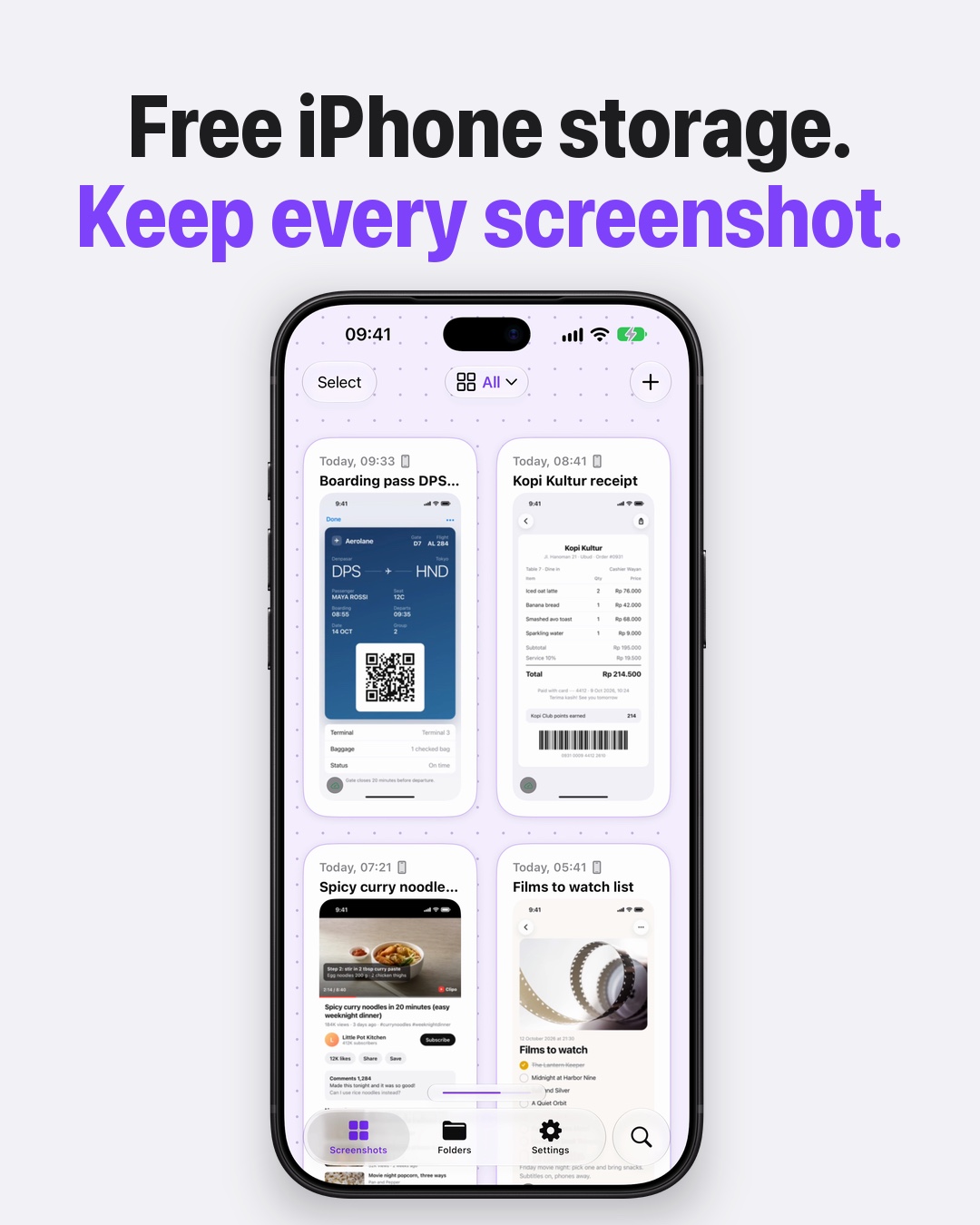

To free up iPhone storage without losing a screenshot, sync them to CloudShots on iPhone, then use Free Up Your Photos: it removes the Photos copies only after they are confirmed in your own private iCloud.
Why screenshots fill the phone
I take screenshots all day: boarding passes, receipts, recipes, chats, error messages, a Wi-Fi password someone read out. They pile up in Photos, mostly forgotten, and a year later they are a real part of what Settings calls "iPhone Storage". Deleting them in bulk is risky, because somewhere in that pile is the one I will need next month. So I never did it, and the storage warning kept coming back.
CloudShots is a screenshot app for iPhone, iPad and Mac that I build in my free time. My name is Roman Res, I have been an iOS and macOS developer since 2011, and this pet project started because I wanted to clean up without losing anything.
What the slides show
The carousel walks through the clean-up in five steps.
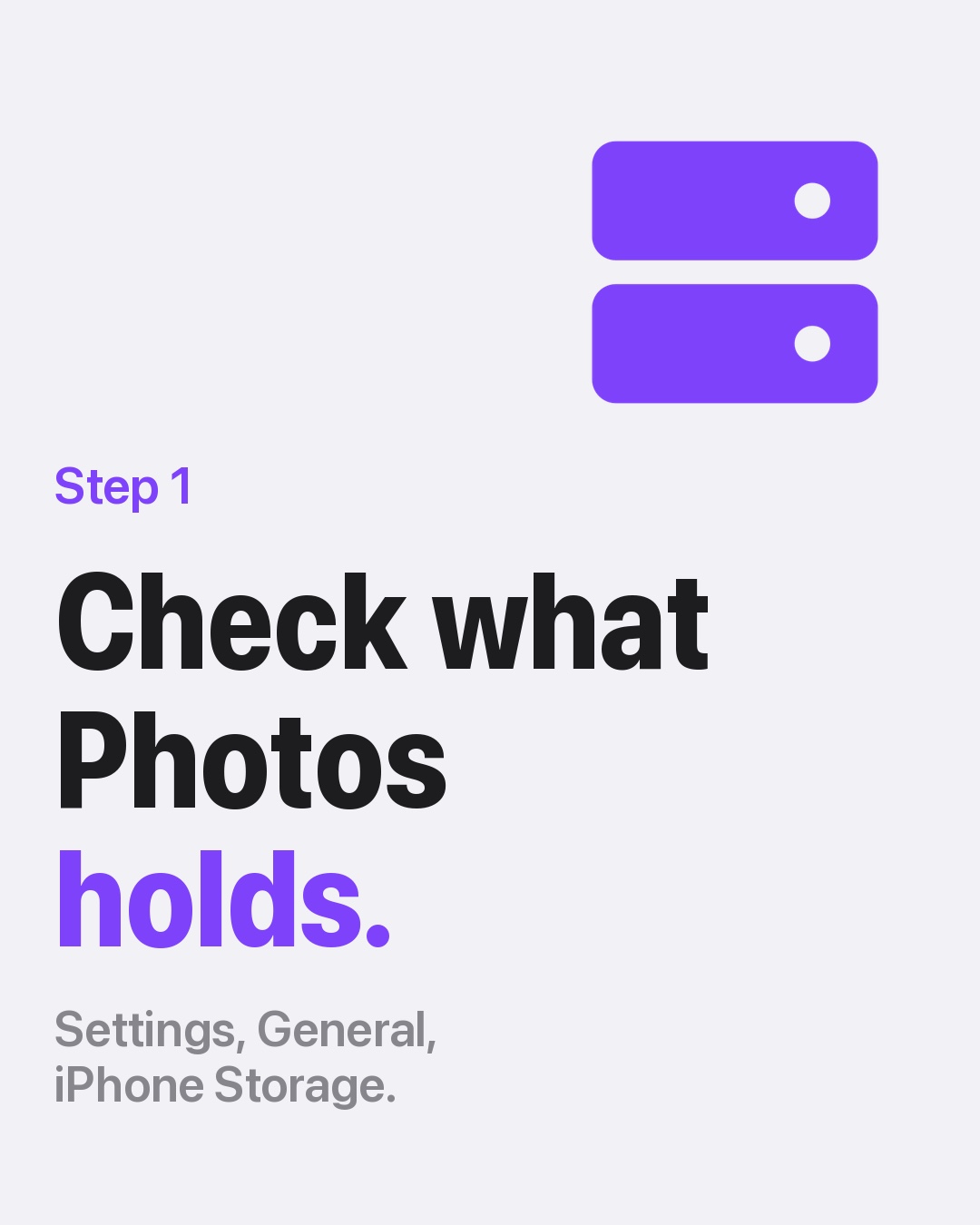
- Check what Photos holds. On iPhone, open Settings, General, iPhone Storage and look at Photos. That is the number you want to bring down.
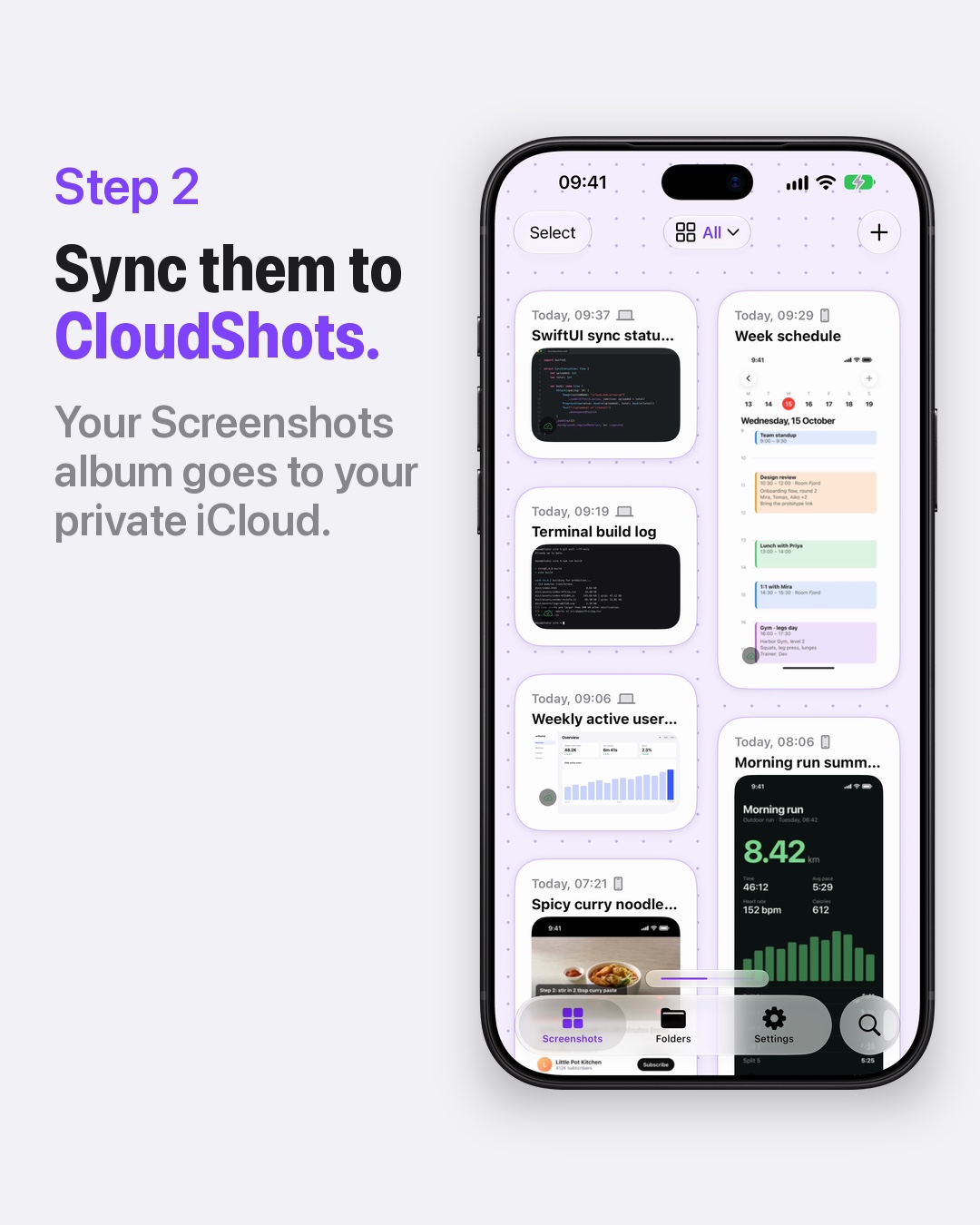
- Sync the screenshots to CloudShots. Your Screenshots album goes to your own private iCloud, and CloudShots shows them in one searchable library.
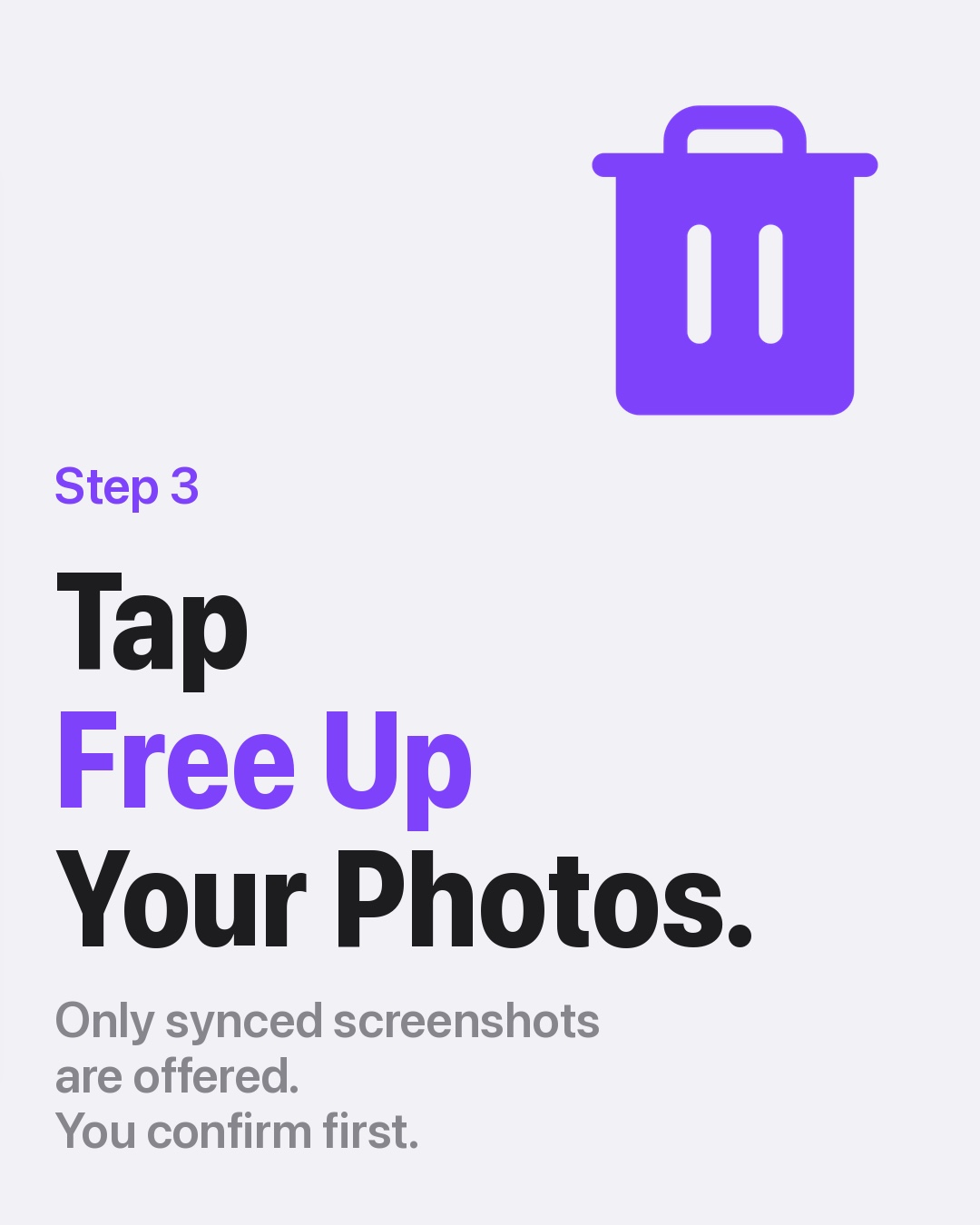
- Tap Free Up Your Photos in the CloudShots settings. Only screenshots that CloudShots has already confirmed in iCloud are offered, and you confirm before anything is removed.
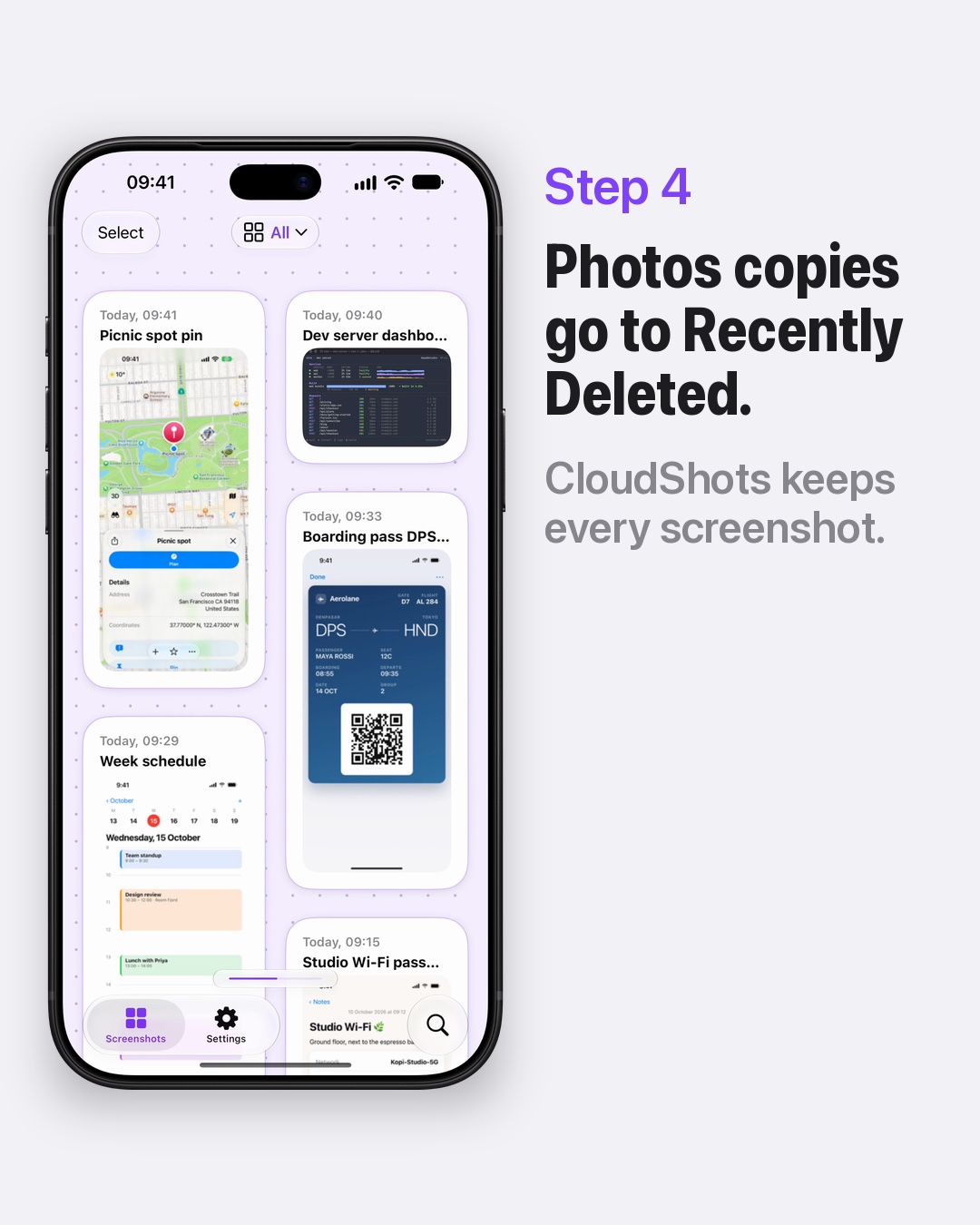
- Photos moves its copies to Recently Deleted. The screenshots stay in CloudShots.
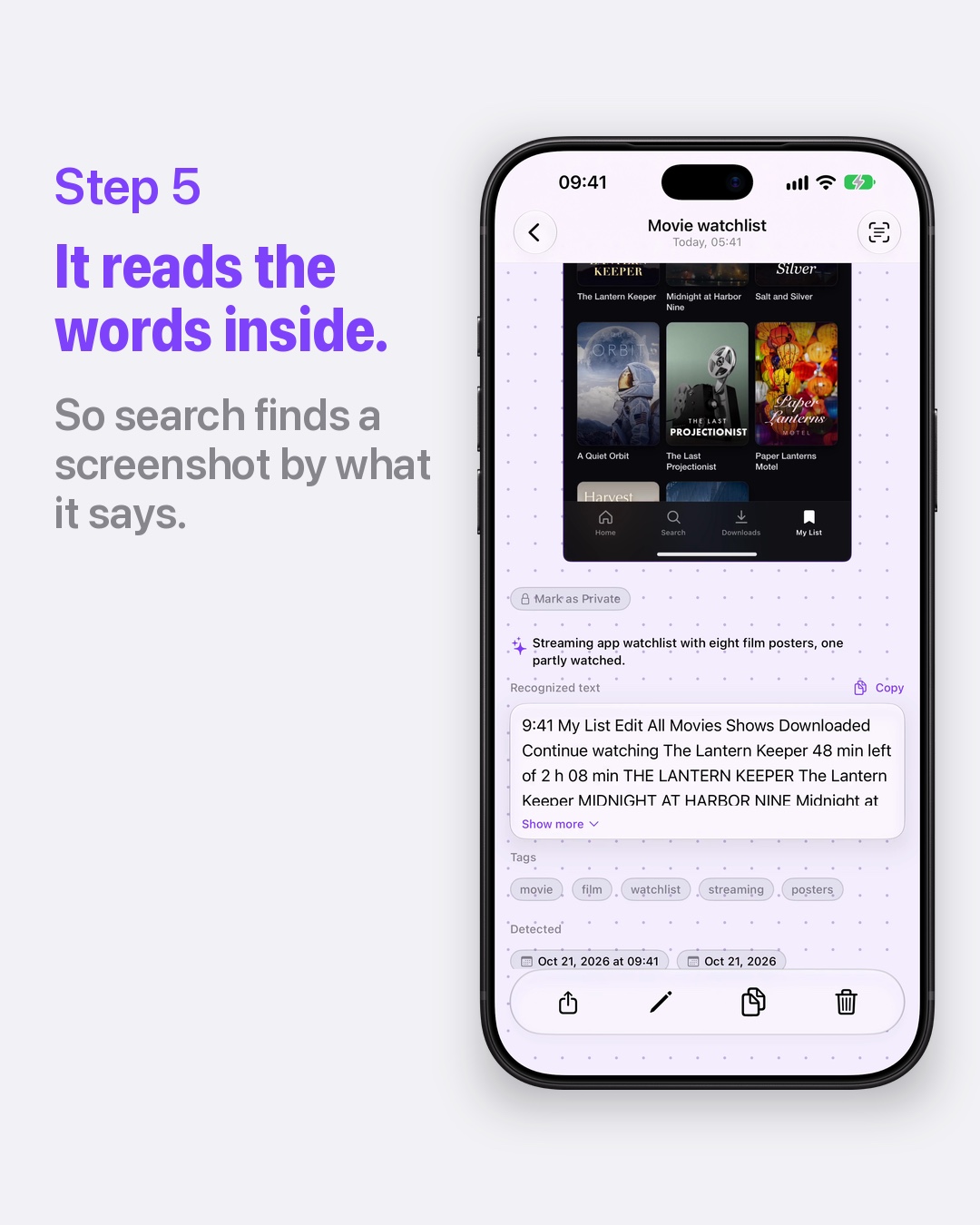
- CloudShots reads the words inside each screenshot, so search finds it by what it says, even after its copy left Photos.
The two type slides are plain text because I did not want to draw a fake settings screen. The phone slides are real CloudShots screens with my demo library.
How to free up iPhone storage with CloudShots
- Install CloudShots and let it import your existing screenshots.
- Wait until the sync finishes. CloudShots only offers a screenshot for removal after it is confirmed in your private iCloud.
- Open Free Up Your Photos in the library settings. The confirmation tells you how many screenshots are synced to CloudShots before the destructive button.
- Confirm. The system asks once more, and the copies in Photos move to Recently Deleted, where Photos keeps them for its usual recovery period.
- Open iPhone Storage again to see the difference.
The full walkthrough is in the free up screenshot space guide, and the screenshot history page shows how the library is organised.
What stays safe
Free Up never deletes from CloudShots. It removes the copy in Photos, and only for screenshots that are confirmed in iCloud. Anything that has not finished syncing keeps its copy in Photos until it is backed up. The removed copies go to Recently Deleted, not into thin air, so a mistake can still be undone from Photos.
Your library syncs through your own private iCloud, and there are no CloudShots servers holding your screenshots. The privacy page has the details, and sync screenshots between Mac and iPhone explains how the same library shows up on the Mac.
Finding a screenshot after it left Photos
The reason I trust this is search. CloudShots reads the words in every screenshot, so I type a word I remember, such as a film title, a street or a name, and the screenshot comes up with the word lit inside the picture. The find text in screenshots guide shows how it works. The example in the last phone slide is a movie watchlist screenshot, with the text CloudShots recognized in it listed under the picture.
The slide is a take from my demo library, so I make no claim about speed. What matters is the flow: the screenshot lives in CloudShots, so removing the copy from Photos costs nothing in findability.
What this does not do
Free Up works on screenshots that CloudShots has imported and confirmed. It does not touch your camera photos, and it does not remove anything that is still syncing. If you set a history size limit in CloudShots, that is a separate setting that does remove older screenshots from the library, and it asks you first.
FAQ
How do I free up iPhone storage by deleting screenshots?
Sync your screenshots to CloudShots, then use Free Up Your Photos. The copies in Photos move to Recently Deleted and the screenshots stay in your CloudShots library, so you get the space back without losing them.
Will I lose my screenshots when I free up space?
No. Free Up removes only the copy in Photos, and only for screenshots already confirmed in your private iCloud. The CloudShots library keeps every screenshot.
Can I get a screenshot back if I change my mind?
The removed copies sit in Recently Deleted in Photos, and the screenshot itself is still in CloudShots.
Where do I check how much space screenshots use?
On iPhone, open Settings, General, iPhone Storage and look at Photos before and after.
Download on CloudShots.app.
More guides
- How to automatically sync screenshots between Mac, iPhone and iPadOne private screenshot history that syncs both ways through iCloud: Mac to iPhone and iPad, and back.
- How to find a screenshot by the text inside itSearch by the words you remember seeing, on any of your devices.
- How to free up the space your screenshots takeClear synced originals from Photos and your Mac without losing your history.
- CloudShots is an iCloud screenshot manager for Mac, iPhone and iPadWhat lives in your own iCloud, how the library limit works, and what stays private.
- One screenshot history for your Mac, iPhone and iPadOne searchable history of every screenshot from your Mac, iPhone and iPad, synced through your own iCloud. Find any shot and free up storage.
- How to pin a screenshot on screen on MacKeep a screenshot floating above your other windows on Mac with ⌘P. Pin up to 6, move and resize them, close with Esc.
- How to redact or blur text and faces in a screenshot on MacBlur, pixelate or cover text, faces and objects in a screenshot on Mac. Redaction in CloudShots is non-destructive: your original stays untouched.
- How to add a background, padding and shadow to a screenshot on MacExport a Mac screenshot with a background, padding, rounded corners and a shadow using Export with Frame in CloudShots. Copy, save or share the result.
- CloudShots compared with a premium all-in-one capture suiteHow CloudShots compares with a premium, paid all-in-one capture and annotation suite for Mac: history, text search, redaction and pricing.
- CloudShots compared with a floating screenshot toolHow CloudShots compares with a floating, pin-on-screen screenshot tool with a quick library: history, text search, redaction and pricing.
- CloudShots compared with a fast capture and text-recognition utilityHow CloudShots compares with a fast, lightweight capture utility with on-screen text recognition: history, text search, redaction and pricing.
- All guides


TestFlight includes Pro for beta testing. No purchase is required or charged.