Stop AirDropping screenshots to yourself
By Roman Resenchuk,
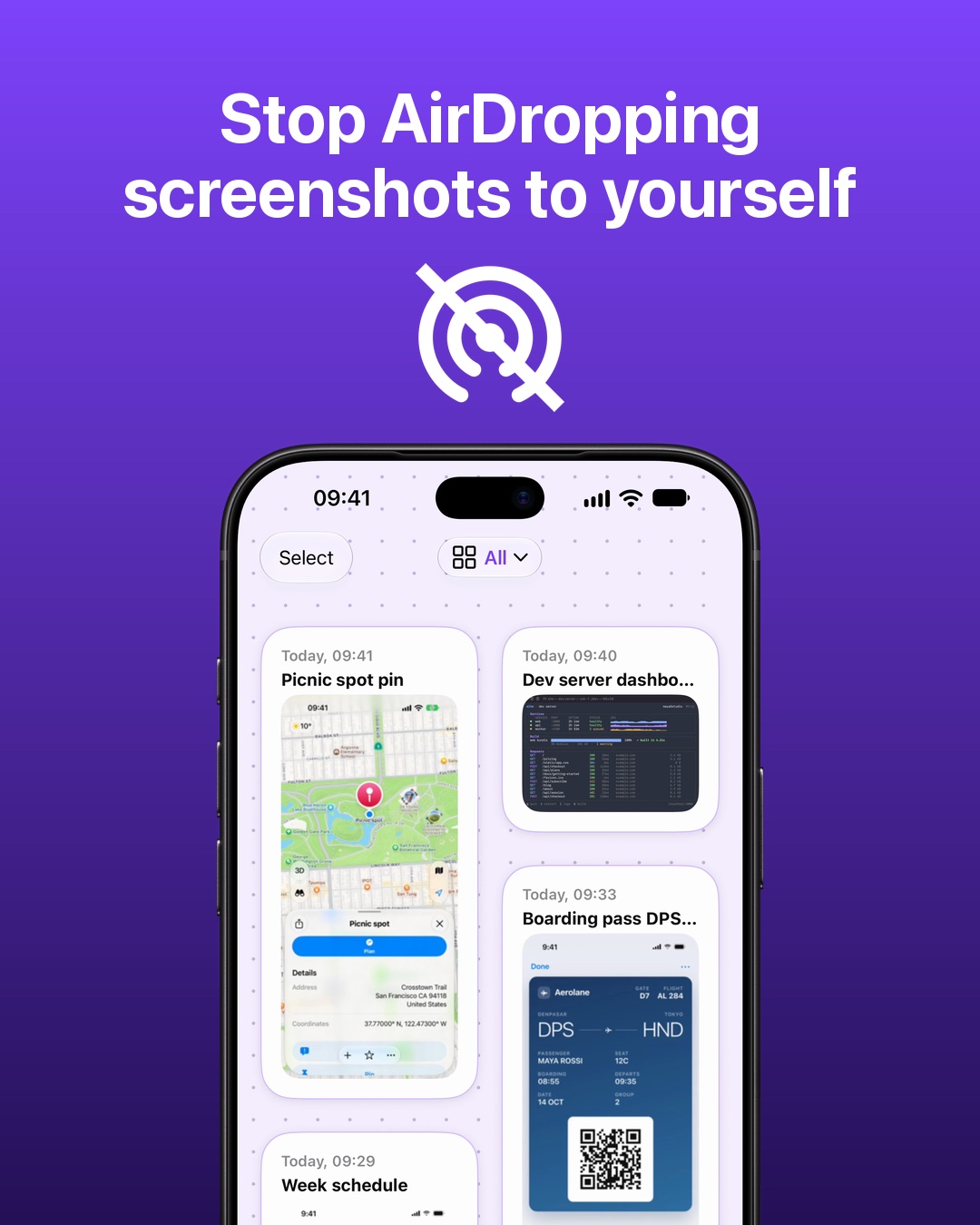
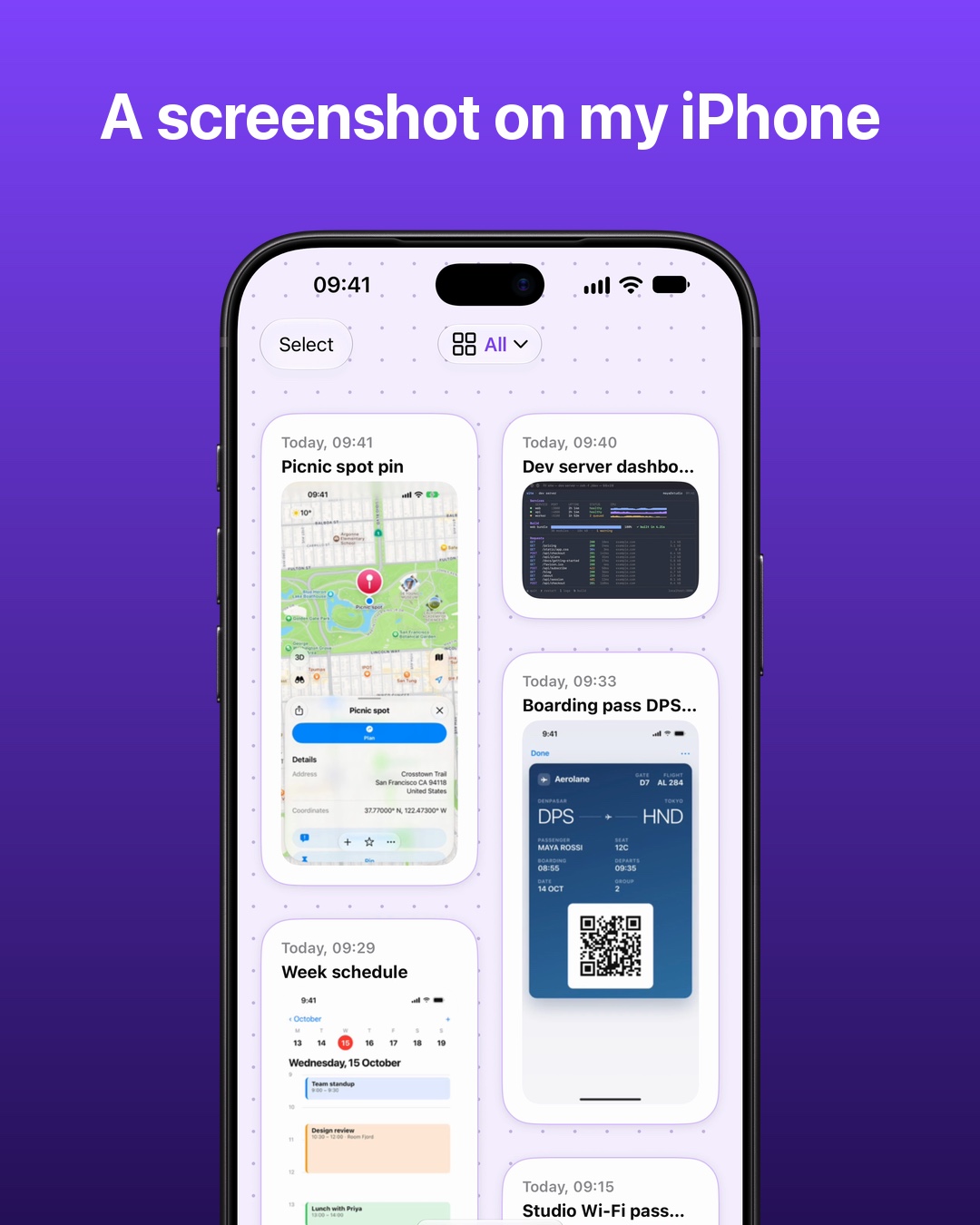
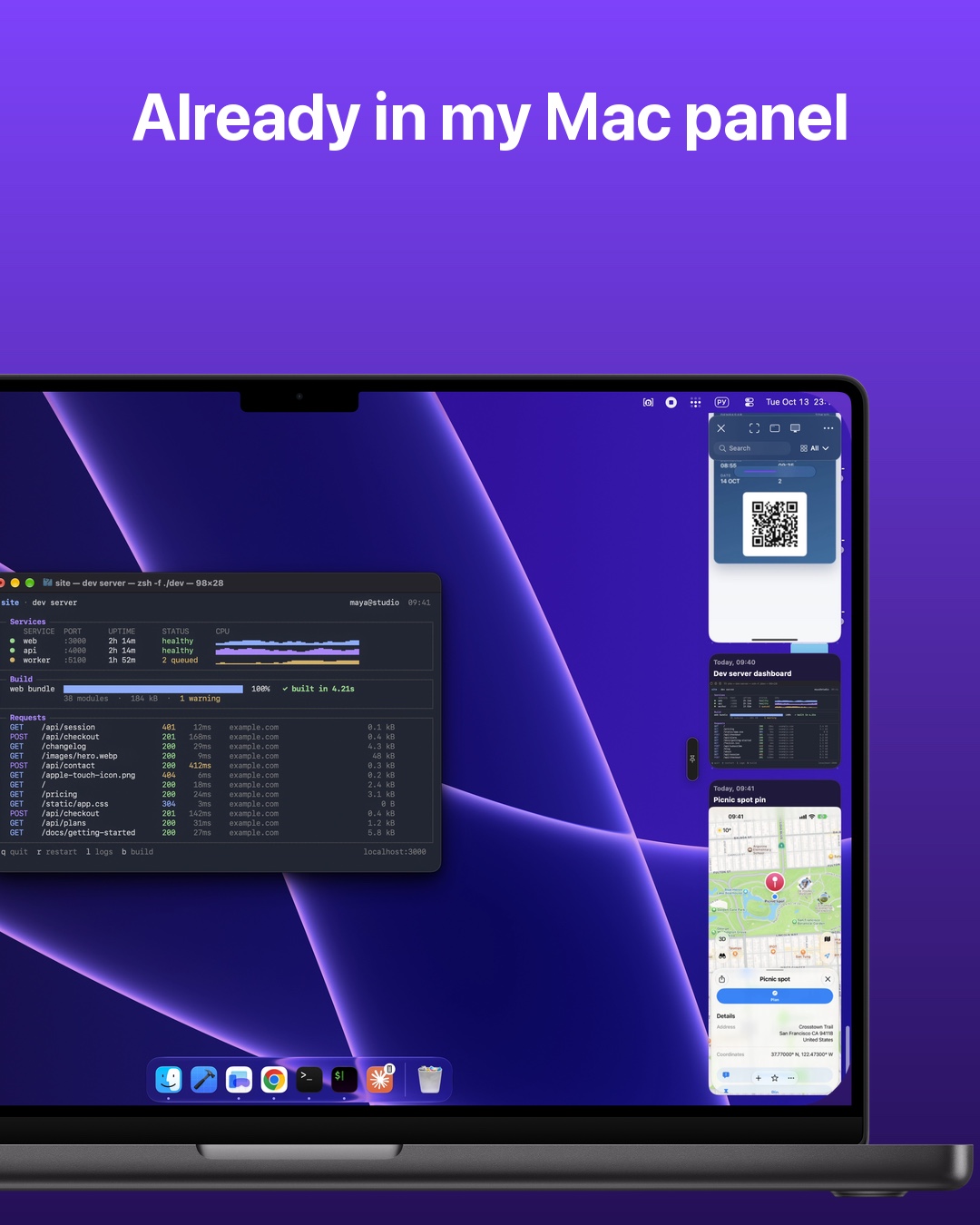
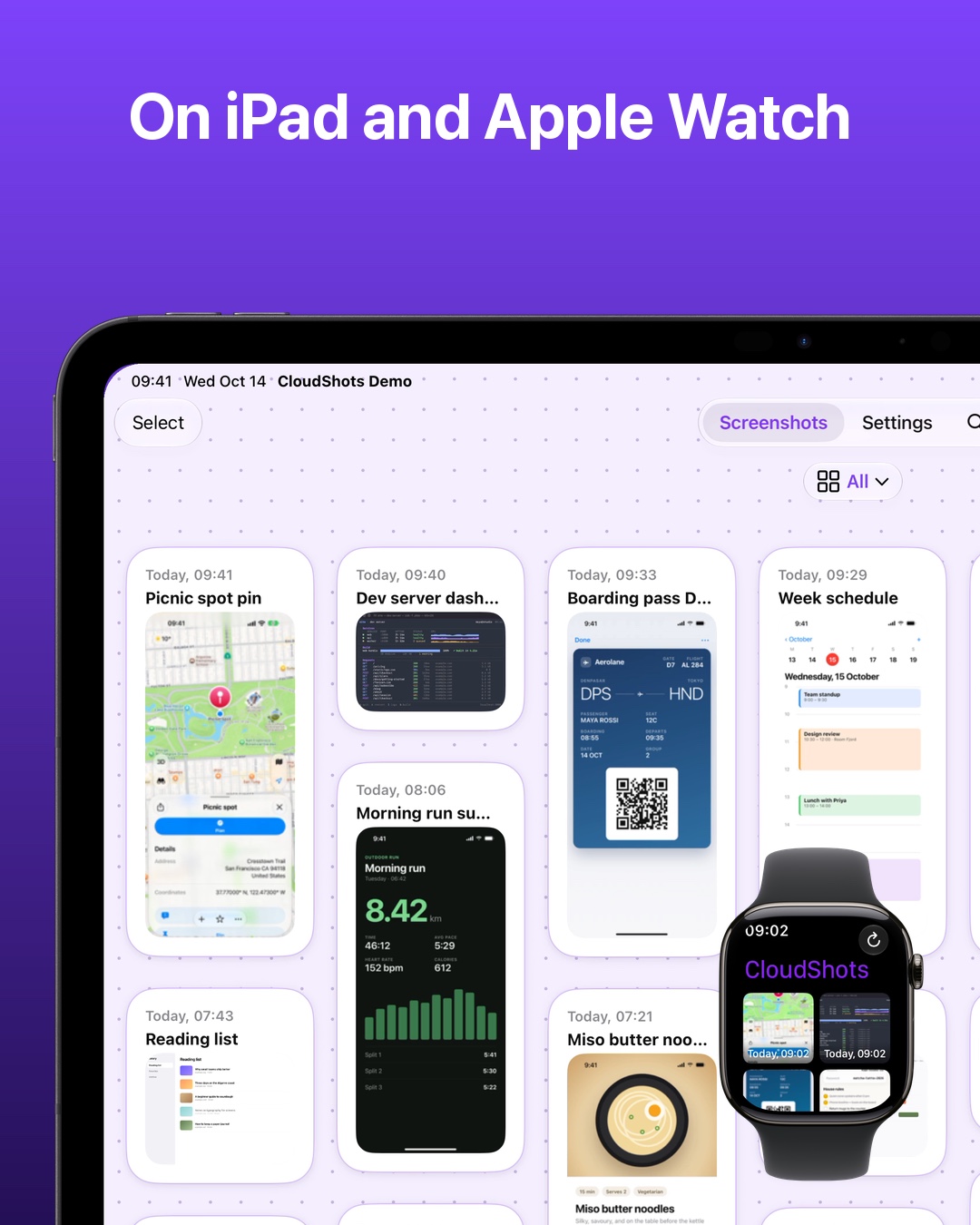
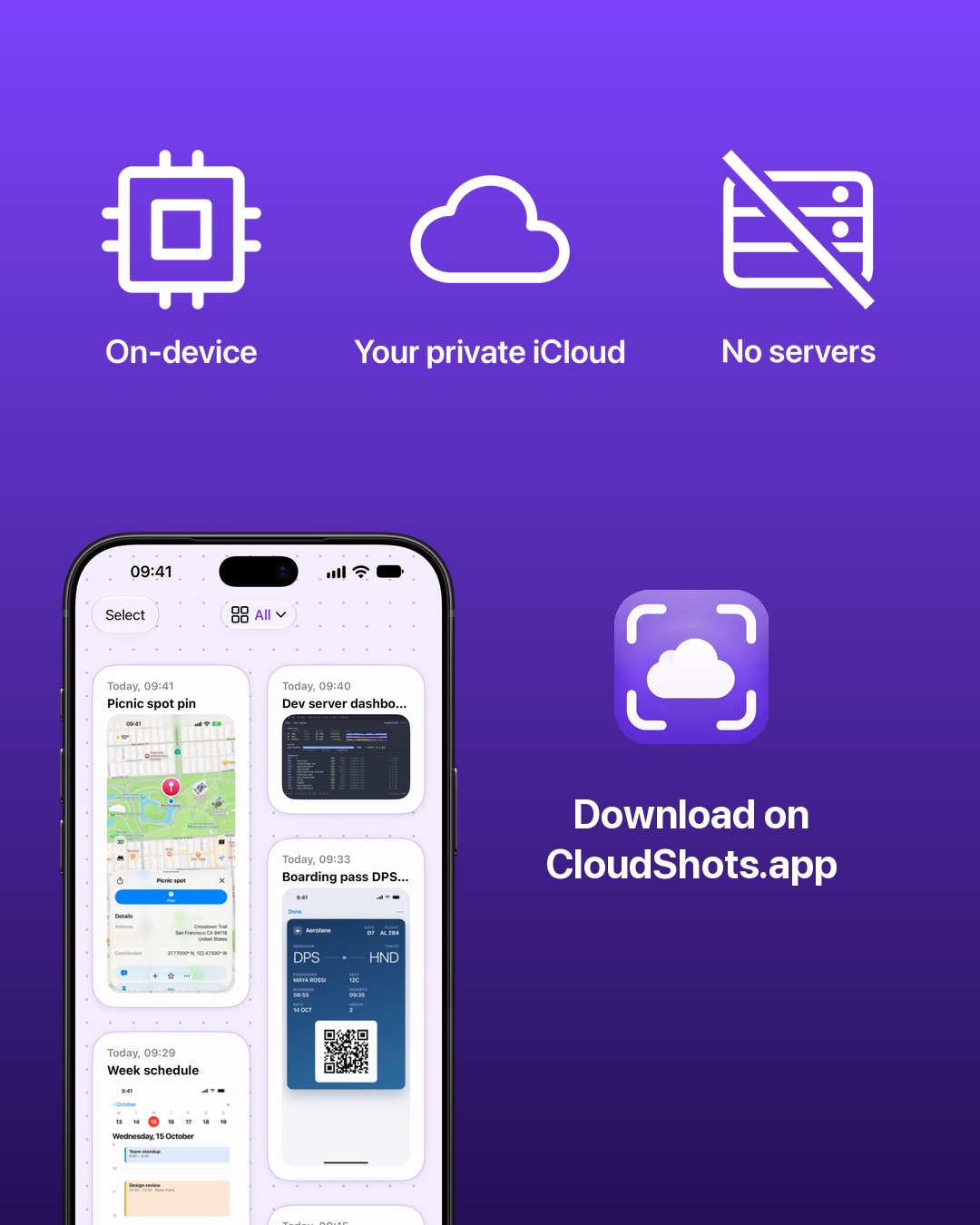
To stop AirDropping screenshots to yourself, let CloudShots import them on iPhone and sync them through your private iCloud to Mac and iPad. Recent screenshots are available on Apple Watch too. Open the feed on the device you need instead of sending yourself another copy.
One screenshot, four screens
I save a map pin on my iPhone because that is where I found it. Later, I need the same picture while planning on my Mac. Sending it to myself adds a separate transfer to a task that should only involve opening the screenshot. The picture already exists; I want to find it from the screen in front of me.
CloudShots is a screenshot app for iPhone, iPad and Mac, with recent screenshots on Apple Watch. I build it on weekends around that ordinary problem: screenshots belong in one feed that I can reach from my Apple devices. The source can be my phone while the next useful place to see the picture is my desktop or my wrist.
This carousel follows one Maps screenshot with a picnic spot pin. On the iPhone, it appears as a card in the feed. On the Mac, the matching picture is in the panel beside the desktop. On iPad and Apple Watch, the same pin gives the story a recognizable endpoint. I can identify the picture by its contents without reading a long filename.
How to sync screenshots from iPhone to Mac
- Install CloudShots on your iPhone and Mac, and use your own iCloud account on both devices. Open the app and complete its onboarding so each device can access the screenshot library.
- On iPhone, grant Photos Full Access when prompted. CloudShots imports from the Screenshots album; limited access does not expose that album for the same automatic import flow.
- Take a screenshot on iPhone, then open CloudShots on your Mac and look for it in the panel. Allow import and iCloud sync to finish before expecting the matching card on another device.
- Open CloudShots on iPad or Apple Watch when you need the picture there. The watch shows recent screenshots rather than the entire library, so it serves a different role from the larger screens.
The Mac can also import screenshots from a folder you choose during onboarding. Folder access is a separate permission from Photos access on iPhone. If your starting point is a Mac screenshot, that folder choice matters; for this carousel, the starting picture is on iPhone.
The screenshot sync guide explains the cross-device workflow. The useful check is whether the screenshot appears in the destination feed, rather than whether a separate file-transfer dialog finished. I do not put a stopwatch on this workflow: import, connectivity and iCloud availability can affect when another device receives the picture.
On-device work and private iCloud
The short privacy line on the final slide is: On-device. Your private iCloud. No CloudShots servers. Screenshot processing happens on device, and screenshot sync uses the user's private iCloud account. No CloudShots server stores the screenshot library or acts as its transfer destination.
That statement describes screenshot content and its route between devices. It does not mean the app collects no diagnostics. I keep those claims separate because a screenshot library and app diagnostics are different things. The privacy policy describes the broader policy beyond the short line that fits on a carousel.
Using private iCloud also means the Apple account is part of the setup. The app does not replace that account with a separate CloudShots storage service. When I move from the phone to the Mac, I am opening the library associated with my own iCloud rather than sending the screenshot to a CloudShots server first.
What these frames show
Every device in this carousel contains a frame from a real app recording inside an Apple bezel. The matching Maps cell is visible on each screen. These recordings use locally inserted demo screenshots, so their arrival times are editing references rather than measurements of a live transfer between devices.
I use the same picture throughout so the carousel stays about one practical action: finding a screenshot on the device where it is useful next. The images show the app's feed and Mac panel; the sync claim follows the implemented private iCloud workflow, not the timing of the recorded demo arrivals.
FAQ
How do I stop AirDropping screenshots to myself?
Use CloudShots to import iPhone screenshots and sync them through your private iCloud to your Mac and iPad. Complete onboarding, grant the requested library access, and give sync time to finish before checking the destination feed.
Does CloudShots store my screenshots on its own servers?
No CloudShots server stores your screenshot library. CloudShots processes screenshots on device and syncs them through your private iCloud account; that content claim is separate from the app's diagnostics policy.
Can I see the same screenshot on Apple Watch?
CloudShots shows recent screenshots on Apple Watch. The watch reads from your account and has a smaller viewing window than the full library on your other devices.
Do these recordings prove a particular sync speed?
No, these recordings show locally inserted demo screenshots in the real app. They show the matching Maps picture on each surface, without promising a transfer time for your own devices.
Download on CloudShots.app.
More guides
- How to automatically sync screenshots between Mac, iPhone and iPadOne private screenshot history that syncs both ways through iCloud: Mac to iPhone and iPad, and back.
- How to find a screenshot by the text inside itSearch by the words you remember seeing, on any of your devices.
- How to free up the space your screenshots takeClear synced originals from Photos and your Mac without losing your history.
- CloudShots is an iCloud screenshot manager for Mac, iPhone and iPadWhat lives in your own iCloud, how the library limit works, and what stays private.
- One screenshot history for your Mac, iPhone and iPadOne searchable history of every screenshot from your Mac, iPhone and iPad, synced through your own iCloud. Find any shot and free up storage.
- How to pin a screenshot on screen on MacKeep a screenshot floating above your other windows on Mac with ⌘P. Pin up to 6, move and resize them, close with Esc.
- How to redact or blur text and faces in a screenshot on MacBlur, pixelate or cover text, faces and objects in a screenshot on Mac. Redaction in CloudShots is non-destructive: your original stays untouched.
- How to add a background, padding and shadow to a screenshot on MacExport a Mac screenshot with a background, padding, rounded corners and a shadow using Export with Frame in CloudShots. Copy, save or share the result.
- All guides


TestFlight automatically unlocks Pro for beta testing. No purchase is required or charged.