Recognized Text and a Copy Button for Any Screenshot
By Roman Resenchuk,
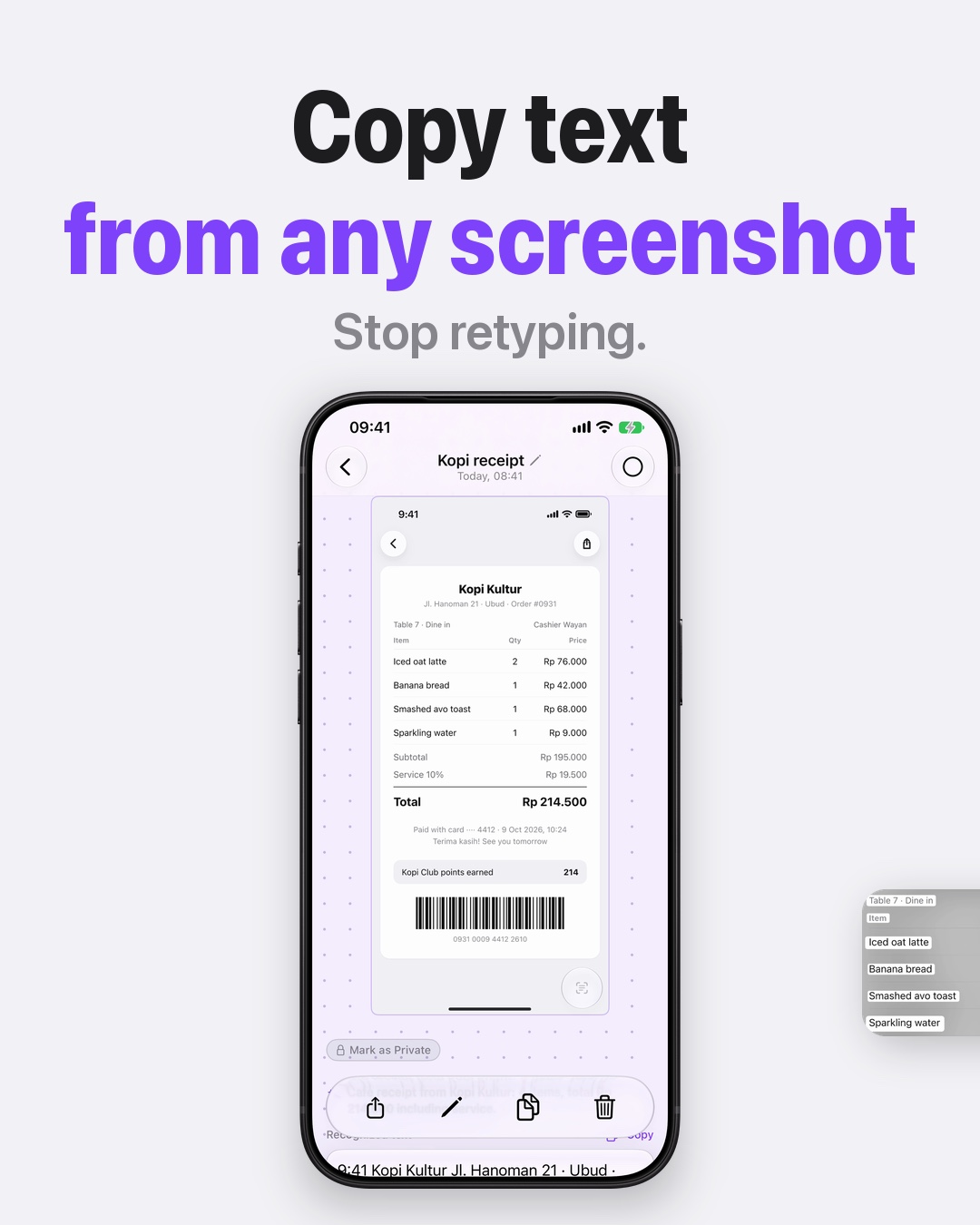

To copy text from any screenshot, open it in CloudShots and tap Copy under the recognized text. The words inside the picture are read for you and shown as text, so you do not retype them.
Why retyping a screenshot is slow
A screenshot is a picture, and the words in it are part of the picture. A receipt, a recipe, a list of steps: you can see every word, but you cannot select one. So you look at the screenshot, type what you read, then look again to check that you typed it right. For a line or two that is fine. For a whole block it is tedious, and the mistakes land in exactly the places you need to be exact.
CloudShots is a screenshot app for iPhone, iPad and Mac. It reads the text inside your screenshots and shows it as text next to the picture, so the words are ready to copy when you open one.
What the carousel shows
The slides follow one screenshot from a plain picture to copied text.
- The cover. A receipt screenshot opened on an iPhone, with nothing marked yet. It looks like any other picture of text.
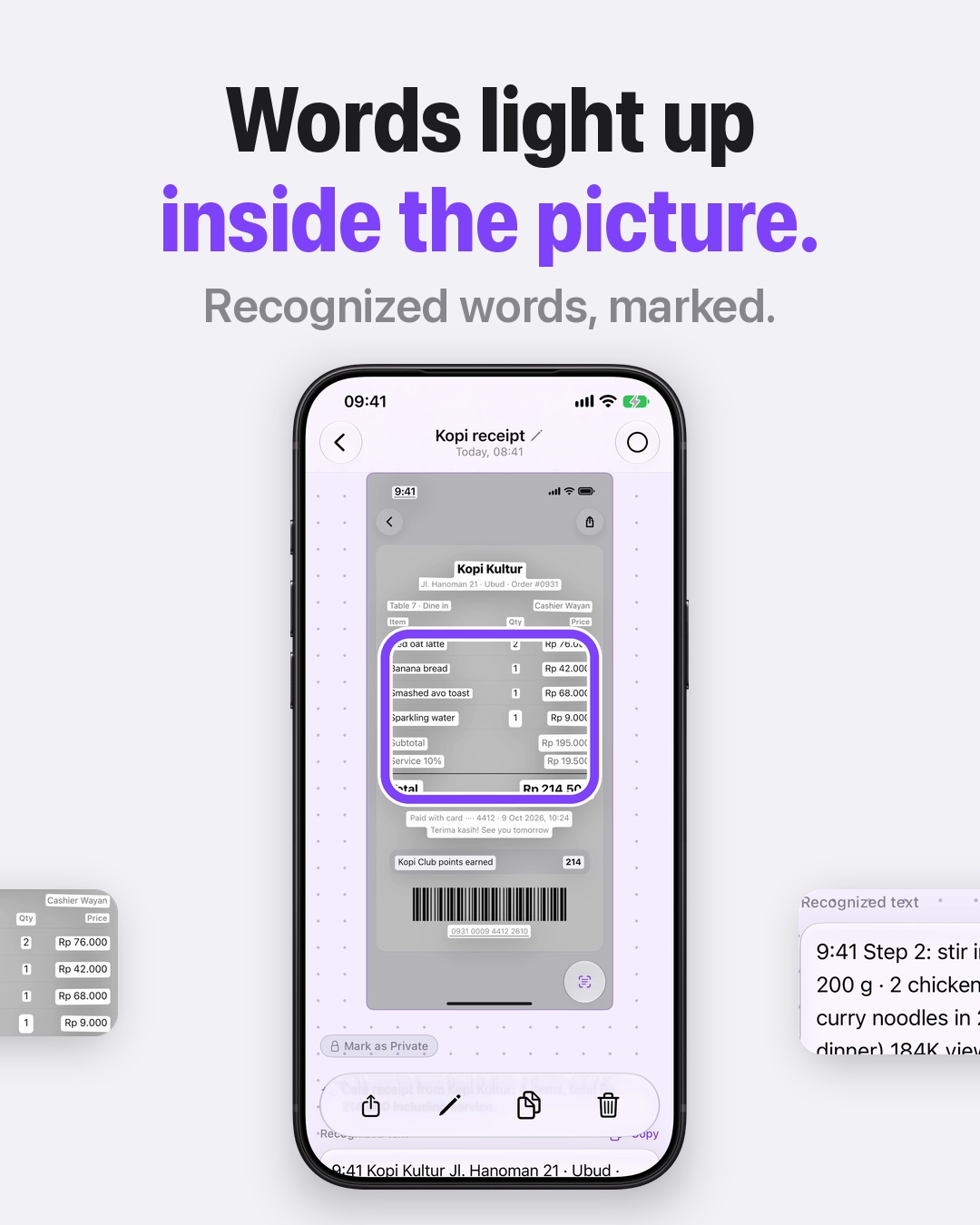
- The words light up. Inside the opened screenshot, the recognized words are marked, so you can see which text was found and where it sits in the image.
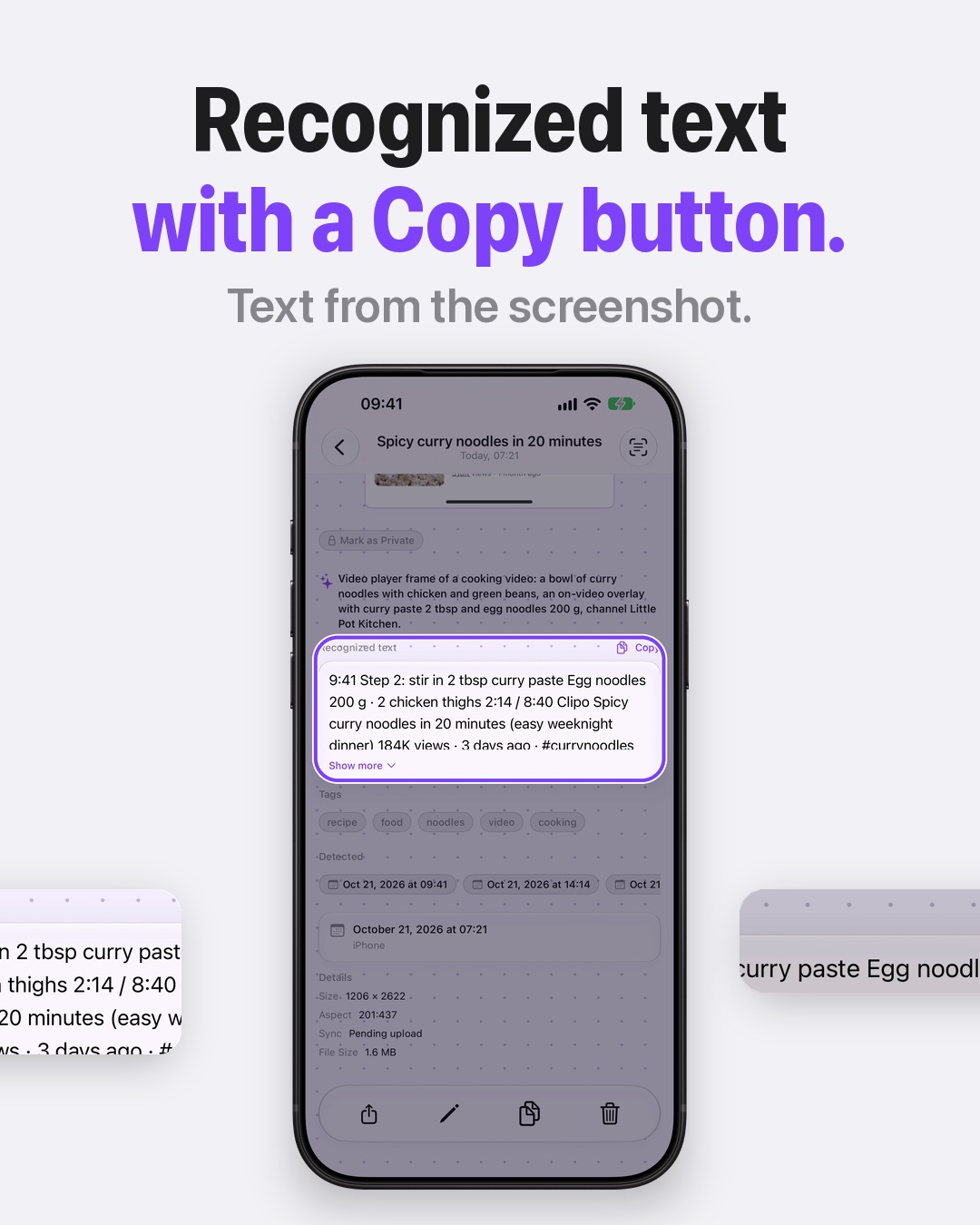
- Text from the screenshot. The rest of the screen is dimmed, and the Recognized text header row with its Copy button and the card below it stay clear.
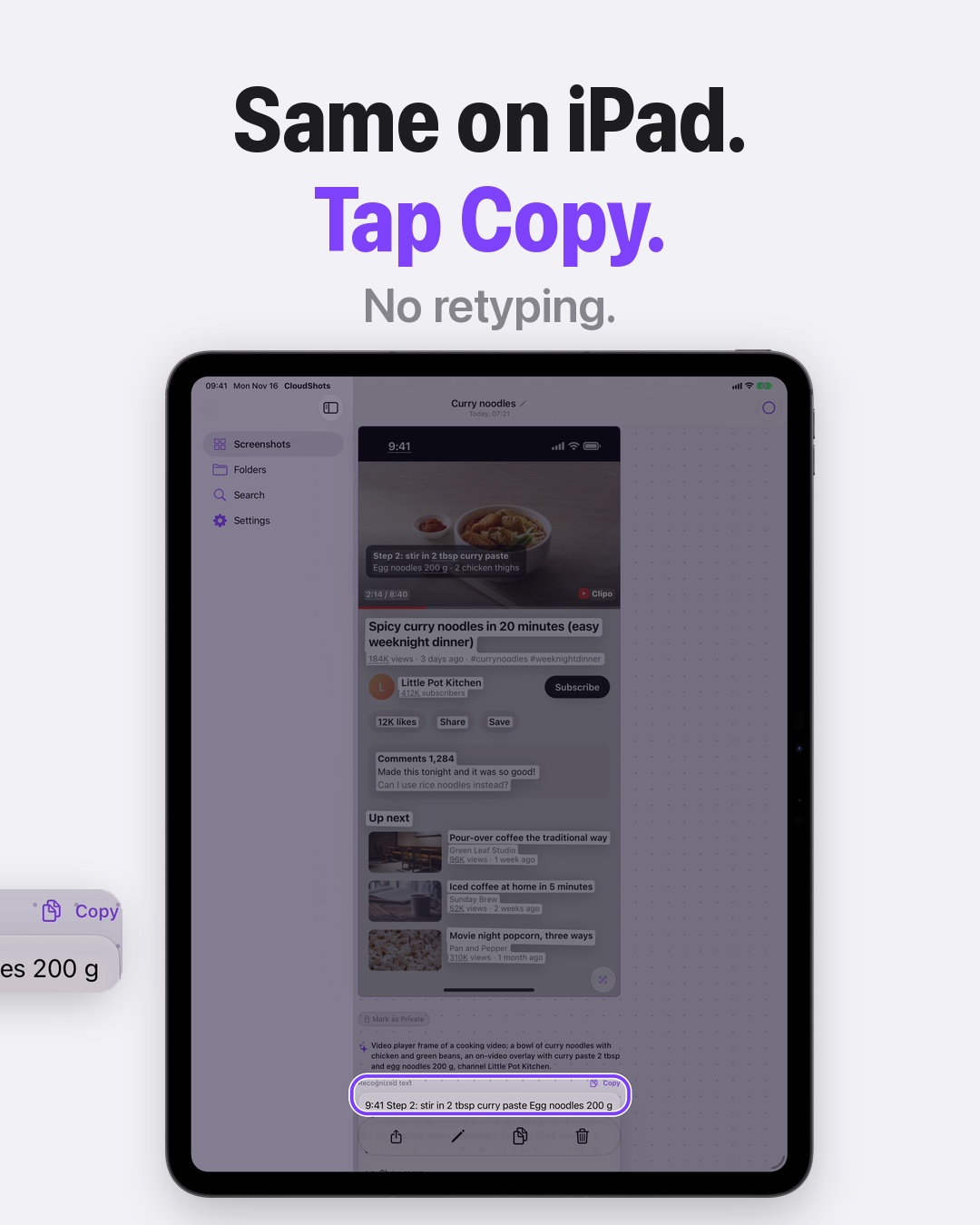
- The same on iPad. The same focus lands on the iPad's Recognized text row with its Copy button.
- The end card, with the app icon and the address CloudShots.app.
How to copy text from any screenshot
- Install CloudShots on your iPhone or iPad and let it bring in your screenshots.
- Open the screenshot you need from the feed.
- Look at the opened picture. The recognized words are marked inside it.
- Scroll to the recognized text under the picture and tap Copy.
- Paste the text wherever you need it: a note, a message, a form.
The recognized text is also what you can search through, so the same screenshot is easier to find later. The guide to finding text in screenshots shows how, and the screenshot history page shows how the whole library is organised.
What kind of screenshot works well
Anything with readable words. A menu, a receipt with its line items, a recipe from a video, a list of steps, a message thread, a confirmation page. Pictures with clear, horizontal text are the easy case, and the Copy button hands you the whole block at once instead of one line at a time. Whatever the source, the steps stay the same: open the screenshot, check the marked words, tap Copy, and paste.
Where it stops
The text you copy is what was read from the picture. A blurry screenshot, very small type or a decorative font can give you a wrong character, so look at anything exact, such as a reference number or an account number, before you rely on it. A picture with no words in it has no recognized text, and there is nothing to copy. Handwriting and unusual layouts may not read well either.
FAQ
How do I copy text from any screenshot on iPhone?
Open the screenshot in CloudShots, find the recognized text and tap Copy. The words are then on your clipboard, ready to paste into any app.
Does CloudShots copy text from screenshots on iPad too?
Yes. CloudShots shows the same recognized text with a Copy button on iPad, so the steps are the same as on iPhone: open the screenshot and tap Copy.
Can I see which words were recognized?
Yes. In the opened screenshot the recognized words are marked inside the picture, and the same words are listed as text under it. You can check them against the image before you copy.
What if a word was read wrong?
Check the text against the picture before you paste it, especially for numbers and codes. A blurry screenshot or tiny type can change a character, so a quick look is worth it.
Download on CloudShots.app.
More guides
- How to automatically sync screenshots between Mac, iPhone and iPadOne private screenshot history that syncs both ways through iCloud: Mac to iPhone and iPad, and back.
- How to find a screenshot by the text inside itSearch by the words you remember seeing, on any of your devices.
- How to free up the space your screenshots takeClear synced originals from Photos and your Mac without losing your history.
- CloudShots is an iCloud screenshot manager for Mac, iPhone and iPadWhat lives in your own iCloud, how the library limit works, and what stays private.
- One screenshot history for your Mac, iPhone and iPadOne searchable history of every screenshot from your Mac, iPhone and iPad, synced through your own iCloud. Find any shot and free up storage.
- How to pin a screenshot on screen on MacKeep a screenshot floating above your other windows on Mac with ⌘P. Pin up to 6, move and resize them, close with Esc.
- How to redact or blur text and faces in a screenshot on MacBlur, pixelate or cover text, faces and objects in a screenshot on Mac. Redaction in CloudShots is non-destructive: your original stays untouched.
- How to add a background, padding and shadow to a screenshot on MacExport a Mac screenshot with a background, padding, rounded corners and a shadow using Export with Frame in CloudShots. Copy, save or share the result.
- CloudShots compared with a premium all-in-one capture suiteHow CloudShots compares with a premium, paid all-in-one capture and annotation suite for Mac: history, text search, redaction and pricing.
- CloudShots compared with a floating screenshot toolHow CloudShots compares with a floating, pin-on-screen screenshot tool with a quick library: history, text search, redaction and pricing.
- CloudShots compared with a fast capture and text-recognition utilityHow CloudShots compares with a fast, lightweight capture utility with on-screen text recognition: history, text search, redaction and pricing.
- All guides


TestFlight includes Pro for beta testing. No purchase is required or charged.