CloudShots Folders: screenshots sorted by what they are
By Roman Resenchuk,
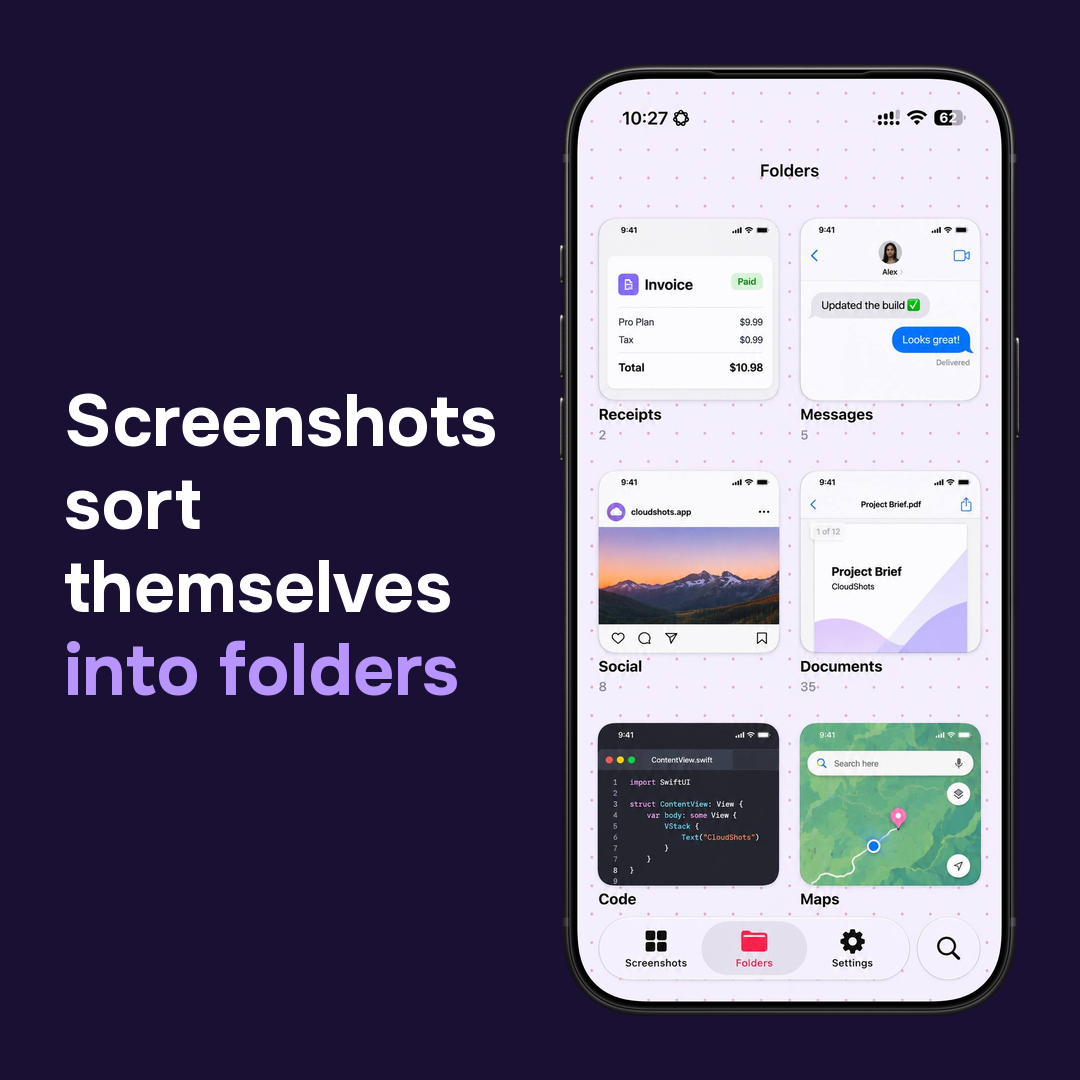
Screenshots are the fastest way to save something on iPhone: a paid invoice, a reply in a chat, a page of a PDF, a few lines of Swift, a route on a map. The trouble starts later, when all of them sink into the camera roll between ordinary photos.
CloudShots sorts screenshots into folders on its own. Receipts end up with receipts, chats with chats, documents with documents and code with code. Every folder card shows a preview of what is inside, so you can find the screenshot you need by looking at it instead of scrolling through hundreds of pictures.
CloudShots works on iPhone, iPad, Mac and Apple Watch and keeps the library in sync through your own iCloud.
More guides
- How to automatically sync screenshots between Mac, iPhone and iPadOne private screenshot history that syncs both ways through iCloud: Mac to iPhone and iPad, and back.
- How to find a screenshot by the text inside itSearch by the words you remember seeing, on any of your devices.
- How to free up the space your screenshots takeClear synced originals from Photos and your Mac without losing your history.
- CloudShots is an iCloud screenshot manager for Mac, iPhone and iPadWhat lives in your own iCloud, how the library limit works, and what stays private.
- One screenshot history for your Mac, iPhone and iPadOne searchable history of every screenshot from your Mac, iPhone and iPad, synced through your own iCloud. Find any shot and free up storage.
- How to pin a screenshot on screen on MacKeep a screenshot floating above your other windows on Mac with ⌘P. Pin up to 6, move and resize them, close with Esc.
- How to redact or blur text and faces in a screenshot on MacBlur, pixelate or cover text, faces and objects in a screenshot on Mac. Redaction in CloudShots is non-destructive: your original stays untouched.
- How to add a background, padding and shadow to a screenshot on MacExport a Mac screenshot with a background, padding, rounded corners and a shadow using Export with Frame in CloudShots. Copy, save or share the result.
- CloudShots compared with a premium all-in-one capture suiteHow CloudShots compares with a premium, paid all-in-one capture and annotation suite for Mac: history, text search, redaction and pricing.
- CloudShots compared with a floating screenshot toolHow CloudShots compares with a floating, pin-on-screen screenshot tool with a quick library: history, text search, redaction and pricing.
- CloudShots compared with a fast capture and text-recognition utilityHow CloudShots compares with a fast, lightweight capture utility with on-screen text recognition: history, text search, redaction and pricing.
- All guides


TestFlight includes Pro for beta testing. No purchase is required or charged.