Find
- Text, objects, scenes, and codes
- Passwords, links, contacts, and addresses
- Visual matches with Find Similar on Mac, iPhone, and iPad through Shortcuts
- Spotlight, names, and summaries

CloudShots captures on Mac without the Desktop clutter and imports from iPhone and iPad, collecting everything into one private iCloud-synced history — then frees up space in Photos once it all syncs.

Not on the App Store yet — leave your email for launch day, or skip the wait with TestFlight.
TestFlight automatically unlocks Pro for beta testing — no purchase is required or charged.
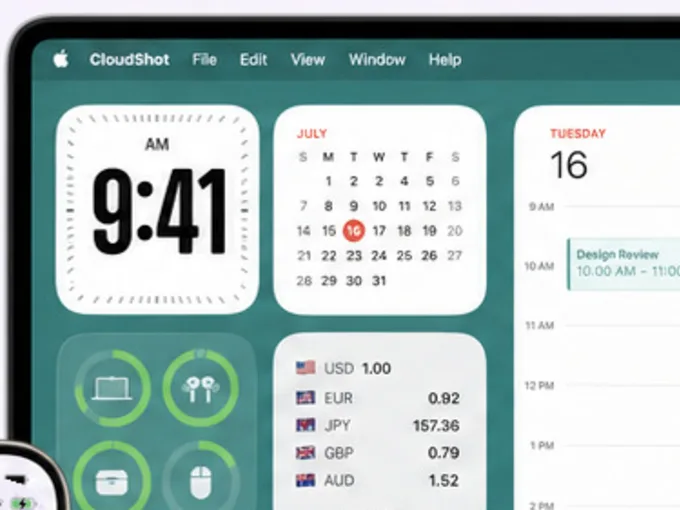
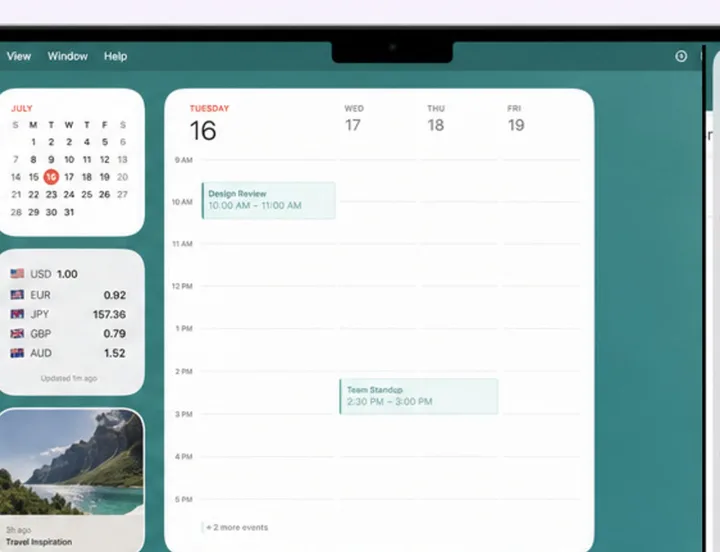
A screenshot captured or imported on one device appears on your Mac, iPhone, iPad, and Apple Watch through iCloud.

Search by a phrase, an object, a place, a code, or a visual match. Recognition stays on your device.
Wi-Fi settings
Guest-WiFi-2024
today · Mac
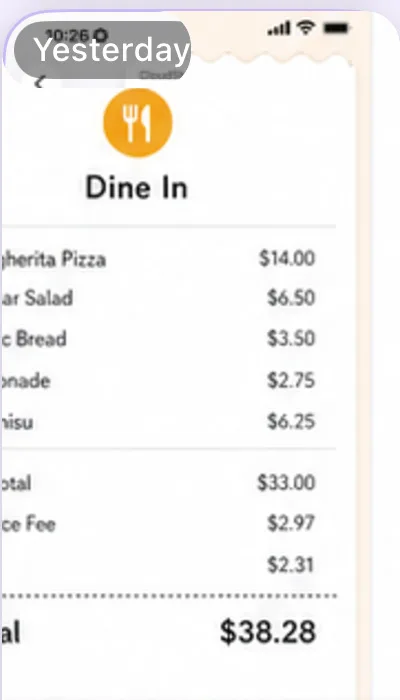
Receipt · Corner Café
Total $12.80
yesterday · iPhone

Verification message
481920
today · iPhone
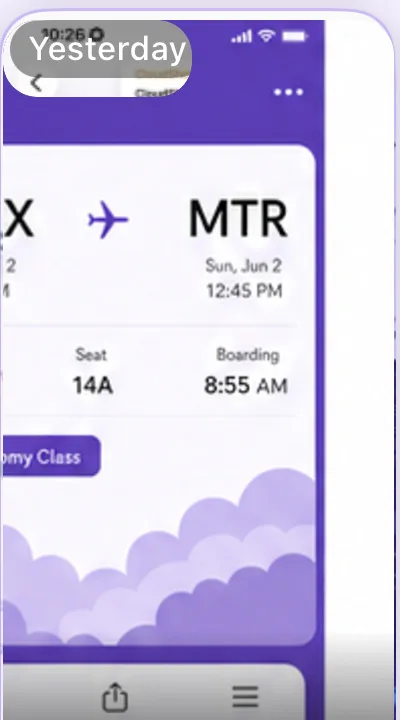
Boarding pass · SFO → JFK
Gate B22 · Seat 14C
last week · iPad
Code · formatDate(input)
toLocaleDateString()
3 days ago · Mac
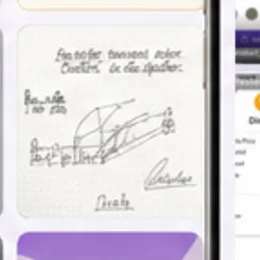
Q3 roadmap
Ship search · Beta invites
today · iPhone
Live demo — six sample screenshots
Capture, find, edit, and share without moving screenshots between apps or devices by hand.
Make a safe copy for someone else without changing your original screenshot.
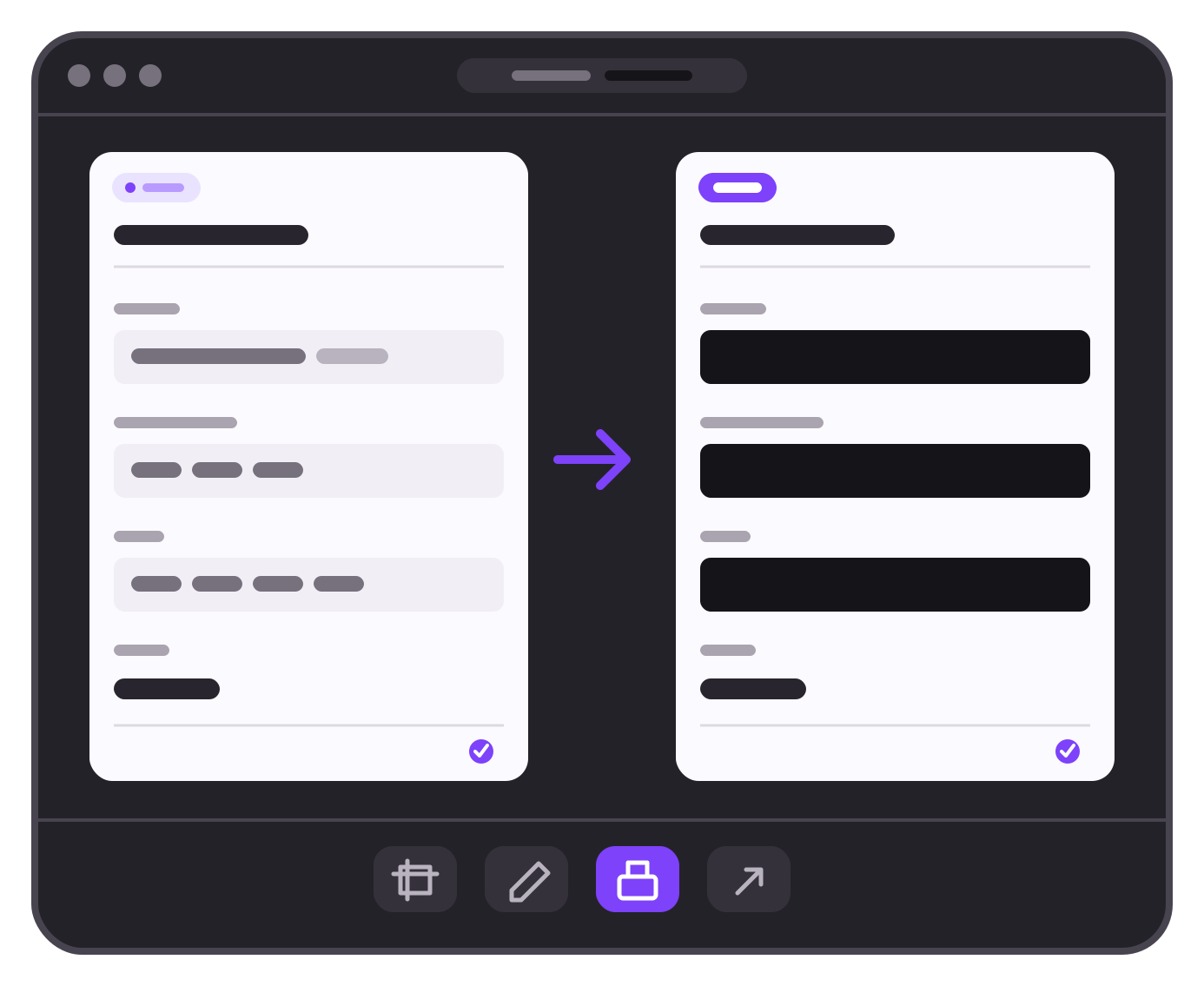
Your library syncs through iCloud. On every supported device, Vision reads text, classifies scenes and objects, finds similar screenshots and groups them, lifts subjects and blurs backgrounds, and detects faces and barcodes; Natural Language powers smart text; VisionKit adds Live Text and data detection; Core Spotlight indexes and donates; and App Intents bring Siri and Shortcuts. Only the names and summaries use Apple Intelligence through Foundation Models, where it's available. CloudShots has no account or external content server.
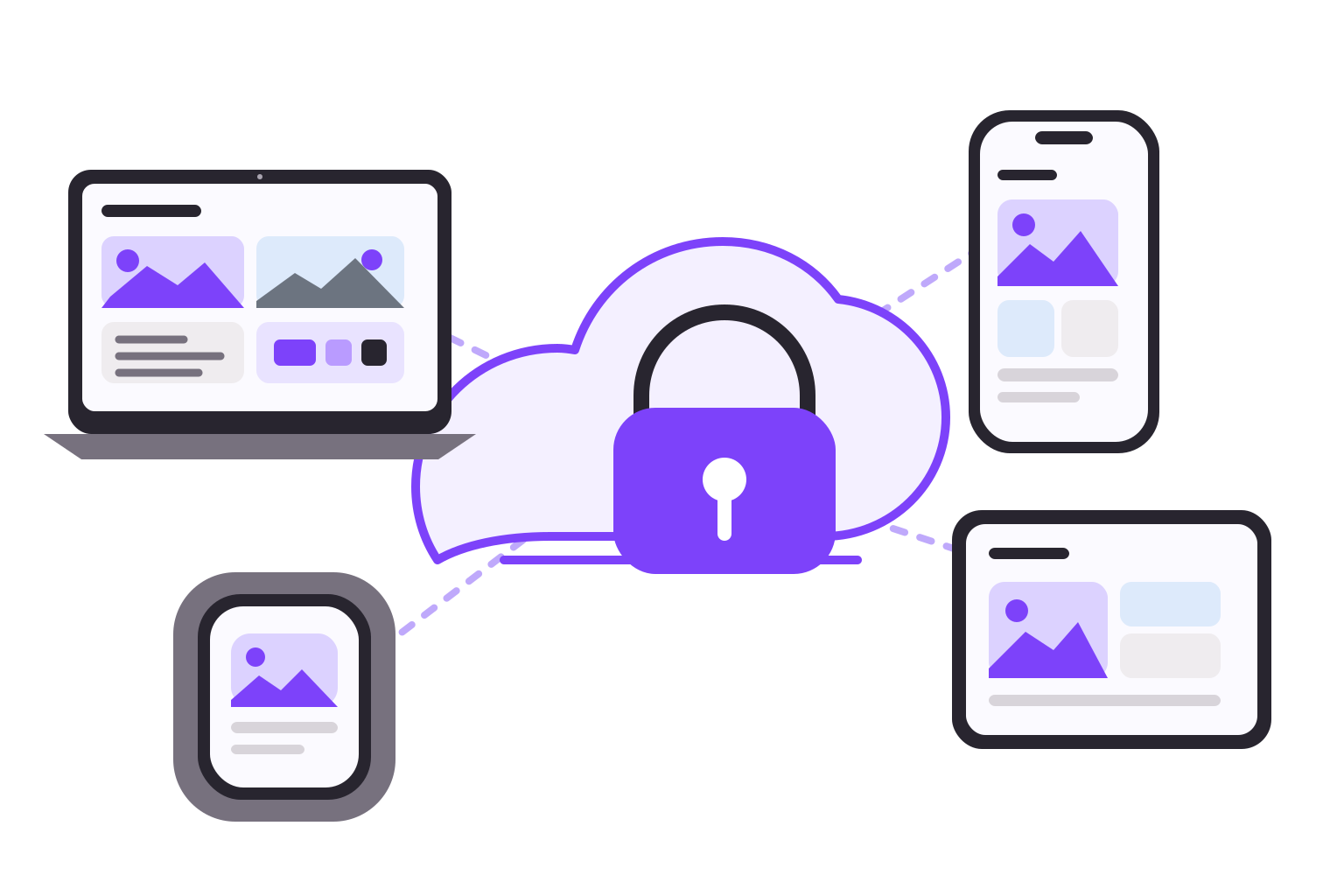
Analytics and diagnostics never touch your content.
They cover only app usage, crashes, diagnostics, and errors, collected by default on App Store builds. Onboarding shows that choice, and Settings lets you turn it off at any time. TestFlight builds have no opt-out — diagnostics stay on for the beta.
Go Pro to open every synced screenshot, free up space in Photos, and clear captured files from your Mac after sync.
How to free up the space your screenshots take
Not on the App Store yet — leave your email for launch day, or skip the wait with TestFlight.
TestFlight automatically unlocks Pro for beta testing — no purchase is required or charged.
Subscriptions renew until cancelled. The yearly trial depends on eligibility; pricing and availability vary by region.
Yes. Free includes capture, import, sync, search, editing, sharing, and your newest 30 screenshots. Older screenshots stay safely stored and synced.
Pro opens your full history and safely clears synced originals from Photos or your Mac. Choose weekly, yearly, or Lifetime; one purchase covers Mac, iPhone, and iPad.
Install CloudShots on both and stay signed in to iCloud. Mac captures and the iPhone or iPad Screenshots album flow into one private history through iCloud, on Free and Pro alike; Apple Watch shows the same history read-only.
There is nothing to file. Every capture lands in one timeline by date, and on-device recognition adds the text, scene tags, and a descriptive filename; the Mac panel also filters by source — Mac, iPhone, iPad, Watch, or CarPlay.
Type what you remember. Search matches recognized text, tags, and generated filenames in any word order, understands phrases like "last week", and the same screenshots surface in Spotlight.
Pro adds Free Up Your Photos on iPhone and Free Up Your Mac, which remove only originals already confirmed in iCloud — to Recently Deleted or the Trash, so they stay recoverable and your CloudShots history keeps them.
On your devices, and privately, in iCloud. CloudShots has no account system or screenshot server; recognition and Private state stay local.
No. Recognition, tags, names, and summaries run on device. Diagnostics never contain screenshots or recognized content.
Yes, minus the sync. Capture, import, history, and editing are local; only cross-device history needs iCloud.
1,000 by default. Free and Pro can choose 200 through Unlimited, and out of the box the setting deletes nothing. Only lowering it below your current library size removes anything — permanently, and only after an explainer and a confirmation naming the exact count.
Yes. Share the image, or invite someone to collaborate with edit or view-only access through iCloud. Redacted screenshots cannot be shared this way; they can still be exported as a file, with the redaction baked in.
Sign in to the same iCloud account on both devices and install CloudShots on each. From then on it is automatic: a Mac capture or an iPhone Screenshots-album import flows into one shared private history through iCloud, on Free and Pro alike.
Yes. CloudShots captures on Mac, syncs the record and the image privately through iCloud, and it appears in your iPhone history automatically — no export, AirDrop, or manual transfer.
Yes. CloudShots imports from your iPhone Screenshots album in the background and syncs each one privately through iCloud, so it shows up in your Mac history automatically.
Yes. CloudShots stores and syncs everything privately through iCloud using CloudKit — there is no CloudShots account and no CloudShots server. Signing in only matters for cross-device history; everything else works without it.
No. Screenshots go only to iCloud, privately. The only third-party egress is anonymized diagnostics via Sentry and PostHog, and they never carry screenshot pixels, OCR text, tags, or annotations.
It is a separate, purpose-built history rather than a replacement for iCloud Photos, Drive, or AirDrop. CloudShots keeps its own synced, searchable timeline of just your screenshots, with on-device recognition and editing those general-purpose tools do not offer.
Yes, on Mac, iPhone, and iPad. Each device builds its own local search index over the same synced history, so recognized text, tags, and generated filenames are searchable wherever CloudShots is installed — with no network required.
Both spellings mean this app. It is called CloudShots, and people often type CloudShot in the singular — the App Store listing and this site are the same app for Mac, iPhone, iPad and Apple Watch.

Start free with your newest 30. Go Pro for your whole history, a clear Desktop, and more space in Photos.
Not on the App Store yet — leave your email for launch day, or skip the wait with TestFlight.
TestFlight automatically unlocks Pro for beta testing — no purchase is required or charged.